Description
Musicolet Android guide: An offline music player works best when the files, folders and playback queues are easy to understand. Musicolet focuses on audio already stored on your phone or SD card. This Musicolet Android guide explains a practical first library, how to use separate queues, what lyrics and tag editing require, and which files to protect before changing devices.
What Musicolet plays and where music comes from
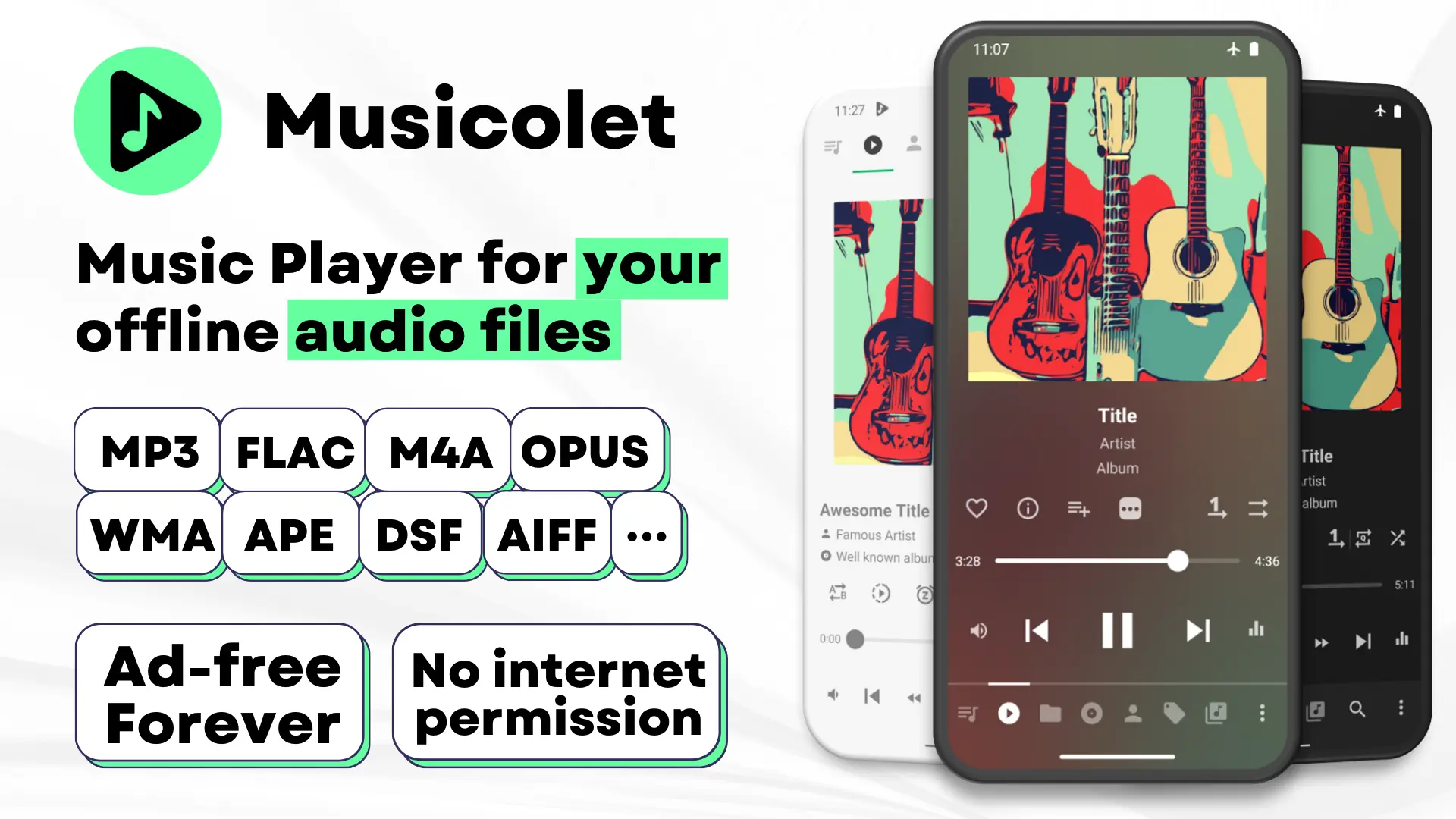
The official Google Play listing identifies Krosbits as the publisher and states that Musicolet plays local audio files. It does not search for, download or stream new music online. Obtain audio through legitimate sources, then copy supported files to storage the app can access.
The official Musicolet website describes multiple queues, folder browsing, tag editing, lyrics, equalizer controls and sleep timers. The main player is ad-free, while the store lists optional purchases. Check the current listing and in-app description for any feature you intend to buy rather than assuming every optional addition is included.
This guide explains a workflow without claiming personal audio-quality tests. Sound depends on the source recording, output device and settings as well as the player. A different interface cannot restore information missing from a poor source file.
Musicolet Android guide to a first library
Begin with a small folder containing a few known-good tracks. Use a location you can find through Android’s file manager, and keep an original copy elsewhere. Grant the media or folder access requested for the task, then check that the same tracks appear in Musicolet. Android permission labels vary by version.
Play one track from beginning to end or skip through several points to confirm the copy is complete. Compare the title and artist shown in the player with the file you intended to move. If a track appears under an unexpected album, inspect its metadata before concluding that the app imported the wrong music.
Keep your first folder structure simple. A main Music folder with recognizable artist or album folders is easier to maintain than audio scattered through temporary download locations. Add the rest of your collection after the small test works. That makes missing files and duplicates easier to diagnose.
Understand folders, playlists and queues
A folder describes where files live. A playlist groups tracks for later use, while a queue describes what you are playing next. Thinking of them separately prevents accidental library changes when you only meant to change the listening order. Check the selected action before replacing a queue or moving a file.
Krosbits describes multiple queues that can preserve different listening contexts. Try one queue for an album and another for a different mood. Switch between them and confirm the displayed track order and position. Learn with a short collection first, then decide whether extra queues actually improve your routine.
Give playlists meaningful names that describe their purpose. A short collection for a commute is easier to maintain than several lists named Favorites 1, Favorites 2 and New. Review a playlist after moving audio files, because organizing a list and preserving its referenced files are separate jobs.
Make useful changes to tags and artwork
The official feature descriptions include editing tags and album artwork. Before making bulk changes, test with a copied track. Check exactly which files are selected and which fields will change. A multi-select operation can affect more of the collection than you intended.
Use consistent artist and album names when grouping matters. A spelling difference or an extra space can split one album into several groups. Correct a small sample, refresh the view and inspect the result before changing hundreds of tracks. Keep meaningful track numbers where the listening order matters.
Metadata editing can change the underlying files, so preserve an original copy of important recordings. Artwork should also be appropriate to the file and its source. Avoid making a large set of irreversible library changes while you are still learning the editor’s controls.
Use lyrics, equalizer settings and timers deliberately
The Android listing describes embedded lyrics and synchronized LRC files, while making clear that lyrics are not automatically fetched from the internet. Use lyrics you are entitled to keep and follow the current filename and folder instructions for matching an LRC file to its audio. A missing lyric display does not mean playback itself is broken.
For sound adjustments, start from a neutral equalizer setting and change one band or preset at a time. Compare at a comfortable volume using the same track and output device. An apparent improvement caused only by greater loudness is difficult to judge. Keep separate expectations for phone speakers, headphones and Bluetooth equipment.
Try a short sleep timer while you are awake to confirm what happens when it expires. Then use it for the listening session you actually want. This simple test is more useful than assuming a timer will stop playback at exactly the point you had in mind.
Back up music and player data separately
The official privacy and backup description says Musicolet backups can contain playlists, favorites, playback history and settings in a ZIP file. Treat that as player-data backup rather than assuming it includes your audio collection. Keep a separate copy of the music files themselves.
Check where automatic or manual backups are being saved. A backup stored only on the same phone will not help if the device is lost. Copy an up-to-date backup and the needed audio files to another protected location. Keep recognizable folder paths when possible, then verify the restored library and playlists on the destination device.
Before an update or reinstall, use APKNIKO’s guide to Android updates without losing data as a preparation checklist. For moving your own files between devices, our LocalSend transfer guide explains a separate transfer workflow. Confirm the received audio opens before removing the original copy.
Troubleshoot a missing song or interrupted session
If a track does not appear, first locate the actual file in Android’s file manager. Confirm that copying finished, the storage is mounted and Musicolet has access. A playlist entry without its underlying file cannot produce audio. Try a known-good track to distinguish a file-specific issue from a wider playback problem.
If playback pauses when the screen turns off, note whether it happens with every output device or only one Bluetooth connection. Check the app’s current help and relevant Android background settings before changing unrelated device controls. Keep the investigation narrow so you can tell which change helped.
For a broader local-media player, APKNIKO’s VLC Android guide covers another option. Compare according to your actual files and playback needs rather than assuming a different app repairs damaged audio. Install Musicolet from its verified sources; our APK safety guide explains checks for an unfamiliar installer.
A short library-maintenance routine
- Verify new files with a short playback test before organizing them.
- Check selected tracks before bulk tag edits or moves.
- Use clear names for playlists and separate listening queues.
- Keep audio files and player-data backups in separate copies away from the phone.
- Confirm a restored track and playlist before deleting an old installation.
Review only the parts of the collection you use regularly. A small amount of consistent maintenance is easier to repeat than a complete reorganization every few weeks. When something goes wrong, clear filenames and a verified copy give you a useful starting point.
Frequently Asked Questions
Can Musicolet download songs from the internet?
No. Its official description limits the app to local audio playback and organization.
Does offline playback require a streaming subscription?
Musicolet plays supported files you already have. It does not provide a subscription catalog of new music.
Why are lyrics missing?
The app needs suitable embedded lyrics or a matching LRC file; the official listing says it does not fetch them automatically.
Does a player backup include every audio file?
Do not assume that. The documented ZIP backup covers player data such as playlists and settings. Copy the music separately.
Should I edit every track’s tags at once?
Test a copied sample first, inspect the result and preserve originals before applying bulk changes.
Keep playback and recovery simple
Start with a verified folder, use queues for distinct listening sessions and make careful metadata changes. Protect both the audio and the player data before moving devices. An understandable local library is easier to enjoy and easier to recover.