Markor APK for Android: Official Download, Markdown & Notes Guide
Description
Markor APK for Android offers a different approach to notes: your documents remain ordinary text files in folders you choose. It supports Markdown and other text formats, works offline and can suit writing that needs to move between a phone and a computer. The key is to organise the files and backup process before creating a large notebook.
This guide uses Markor’s project documentation checked on 15 October 2026. The workflow examples are editorial suggestions, not claims that APKNIKO tested every storage provider or Android release.
What is Markor?
Markor is an open-source Android text editor maintained by Gregor Santner and contributors. Its formats include Markdown, plain text and todo.txt. The official Android package is net.gsantner.markor.
Unlike a service that keeps all notes inside an online account, Markor is designed around local files. That can make documents portable, but it also puts responsibility for storage and backups in your hands. Installing the app on another phone does not automatically bring your existing notebook with it.
The official project repository describes its supported formats and tools. For a beginner, plain text and Markdown are enough to get started. You can explore the additional formats after learning where your files live.

Markor APK download and installation
The button opens the publisher’s Google Play listing. APKNIKO does not host an altered installer or a premium-unlock package.
Markor’s project page also links to F-Droid and GitHub releases. If you choose an APK from outside Google Play, begin with those official links. Check the release notes and Android compatibility for that build instead of relying on an old version number in a third-party article.
Use our APK download guide for source checks and our installation guide for the Android package-installation process. Return installation permission to its normal setting when you finish using an external installer.
Choose a notebook folder you can find again
Markor’s notebook is a filesystem folder. Choose a location you can identify in a file manager, then create one test document. Give it a clear name such as shopping-list.md or study-plan.txt.
Close the document and reopen it from the notebook. Next, locate the same file in your file manager. This confirms that you understand the relationship between Markor’s view and the underlying file, which makes future backups much easier.
Keep the first folder structure small. Notes, tasks and archive are reasonable examples, but there is no need to copy someone else’s elaborate organisation system. A system works when you can find yesterday’s note quickly.
If Android asks you to select or permit access to a folder, read the location carefully. A folder with a similar name on an SD card is different from one in internal storage. Make sure any removable storage you depend on will remain available while you edit.
Start Markdown with a useful document
Markdown uses readable characters to describe simple formatting. A heading can begin with #, while a short list can use hyphens. Markor can show an editing view and a rendered preview, allowing you to check how a document will read.
For a first note, write a title, three short points and one useful link. Switch to preview and check the structure. Then return to editing and change one item. This is a more useful introduction than trying every toolbar button in a blank document.
You can practise with a weekly study note: a main heading for the subject, a section for questions and a small list of next actions. Keep the content readable as plain text so it remains useful in another editor too.
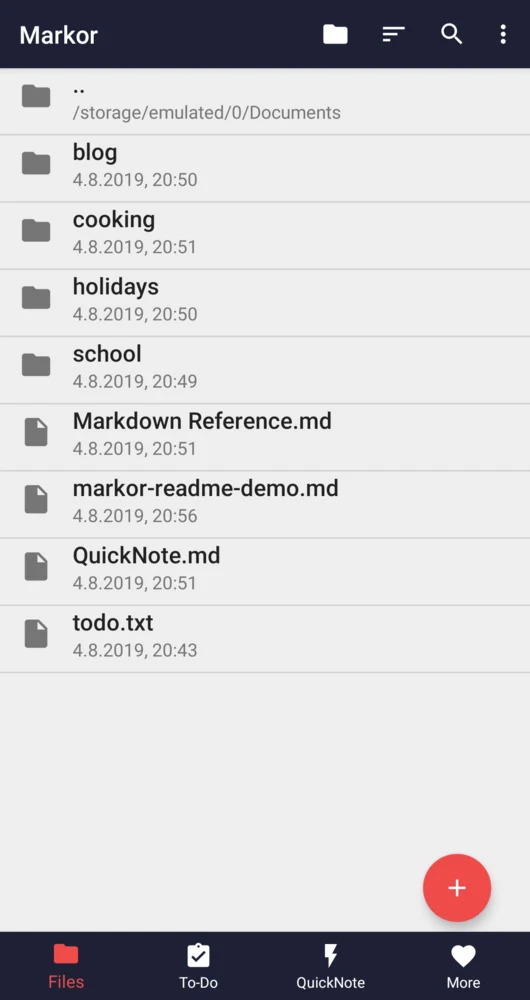
The Markor README documents preview and export features. Exported HTML or PDF is useful for sharing a finished document, while the original text file remains the convenient version to edit later. Check the actual export result before sending it.
Use QuickNote and tasks for different jobs
Markor provides a QuickNote document for capturing text and a To-Do document for tasks. Treat quick capture as an inbox: write down the thought immediately, then organise it when you have time. Otherwise one convenient note can grow into a long, hard-to-search page.
Tasks are clearer when they name a concrete action. Write “check the download link on the draft” rather than “website work.” For a student, “revise the first two examples” is easier to complete than “study mathematics.” These are writing habits, not features that the app can decide for you.
If you use todo.txt syntax, learn the few conventions you need before adding priorities and project markers everywhere. Markor’s repository includes format guidance. Keep your list understandable without relying on a particular colour or display setting.
Review completed tasks periodically and move old material out of the daily view. The goal is to make the next action easy to see, rather than storing every past task in the same screen forever.
Offline editing does not mean automatic syncing
Markor is an offline-focused editor. Its documentation explains that other applications can synchronize files, but those applications do the synchronization. Markor itself should not be mistaken for an automatic cloud notebook service.
If you add a sync tool, test it using disposable notes first. Edit a file on the phone, wait for synchronization, and inspect it on the other device. Then make a different test edit in the opposite direction. Confirm you understand where conflict copies appear.
Avoid editing the same note on two disconnected devices at once until you know how your chosen sync system handles conflicts. A second file with a conflict suffix may contain important work; do not delete it simply because it looks untidy.
For manual transfers, our LocalSend guide covers a separate local file-sharing tool. Copying notes to a computer can be useful, but remember that a transfer and an ongoing backup schedule are different arrangements.
Back up notes and protect sensitive text
Back up the notebook folder, not just a screenshot of Markor’s home screen. Include any local attachments the notes reference. After copying, open a sample note from the backup location to confirm that the content is readable.
The project documents optional text-file encryption. Read the current instructions before using it for important information, keep the required password safely, and note that attachments have different protection from the text itself. A locked phone and an encrypted document solve different problems.
Do not treat a general notes app as a substitute for a dedicated password manager. For account credentials, our Aegis authentication guide explains another part of account security, while recovery planning remains essential for every tool you use.
Fix saving, preview and missing-file problems
If a document will not save, check folder permissions and available storage first. Confirm the SD card or chosen provider is accessible. Try a disposable file in a known writable folder to determine whether the issue affects one location.
If a preview image is missing, inspect its link. A local attachment may have moved, while a remote image can require internet access. The text editor working offline does not make an external website’s content available offline.
If a note disappears after changing the notebook location, check the old folder before assuming the file was deleted. Do not clear app data or uninstall while you are still trying to identify where the documents were stored.
Frequently asked questions
Is Markor APK free?
Markor is a free, open-source editor. Use its official distribution routes rather than a package advertised as a premium modification.
Can Markor work without an account?
Its local editing workflow does not require a Markor cloud account. Any external sync service you add has its own setup and requirements.
Does Markor automatically back up all notes online?
No. Plan a separate backup or synchronization arrangement and verify what it includes. Local files can still be lost with a damaged or missing device.
Can I open my notes on a computer?
Plain-text and Markdown files are portable. Copy the required files and attachments, then use a compatible editor. Preview details can differ between programs.
Who will benefit from Markor?
Markor suits someone who values offline writing, readable files and a folder-based notebook. Begin with one useful document, learn the storage location and verify a backup before expanding. Our APK safety guide can help you check an installer before giving it access to your notes.
Sources checked: 15 October 2026. See the linked Markor repository, release page and F-Droid listing. App icon and screenshot are taken from the publisher’s Google Play media; current interface details may differ.