Bitwarden APK for Android: Official Download, Autofill & Recovery
Description
Bitwarden APK searches usually mean one thing: you want the real Android password manager, with a clear way to install it and use autofill. The safest starting point is Bitwarden’s own download page or its verified Google Play listing. Installing a password manager is only the beginning; keeping access to your vault matters just as much.
This guide explains a practical setup, recovery planning and common autofill problems. It uses official documentation checked on 15 October 2026, rather than a hands-on security audit.
What is Bitwarden for Android?
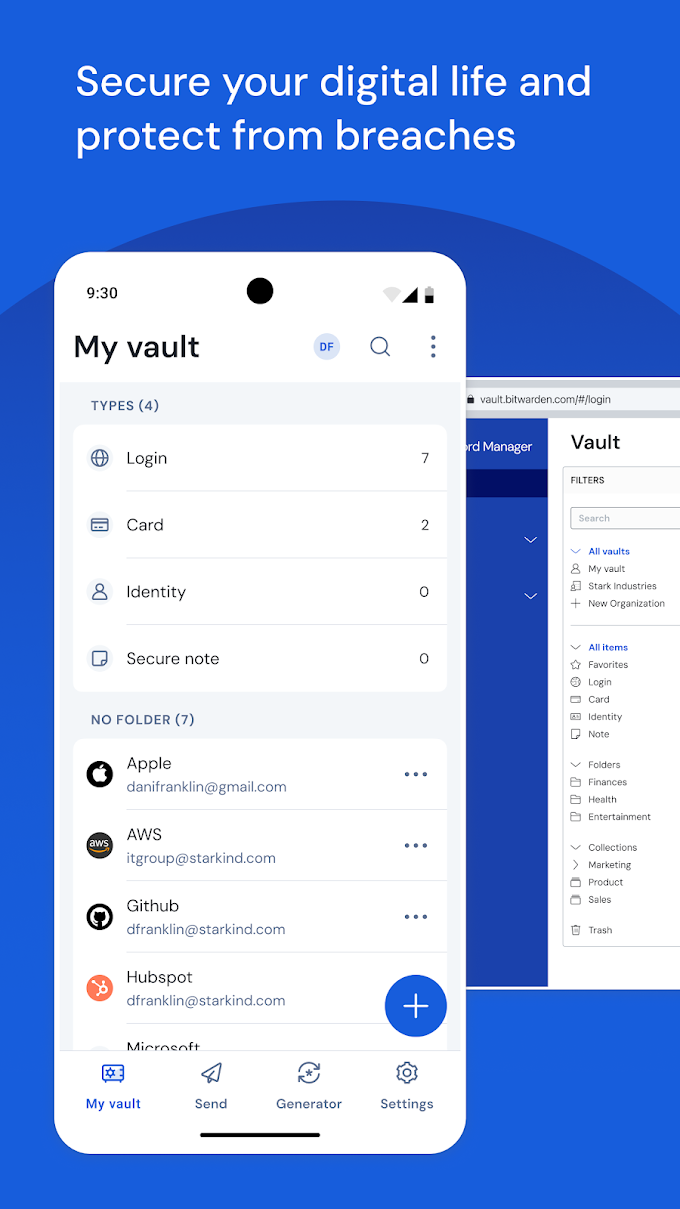
Bitwarden stores login details in an encrypted vault and helps generate different passwords for different accounts. Its Android app can fill supported login forms, while cloud sync makes saved items available to your other signed-in Bitwarden apps. The official listing identifies the publisher as Bitwarden Inc. and the Android package as com.x8bit.bitwarden.
The free personal service includes core password storage and syncing. Some extras require a paid plan, so check the current comparison before paying for a particular feature. A password manager reduces the work of maintaining unique credentials, but it cannot make a fraudulent website trustworthy.
Bitwarden APK download: choose an official route
Use the button below to open the genuine Android listing. This is a store link; APKNIKO does not host or modify the installer.
Bitwarden also publishes other installation options on its official download page. Its own F-Droid repository is separate from F-Droid’s standard repository. The publisher notes that this build lacks Firebase Messaging, so manual vault syncing is necessary instead of push-based live updates. Choose a route you can keep updated.
Do not install a password manager from an advertisement that promises an unlocked premium APK. Such an installer would sit directly between you and sensitive account information. Our APK download guide explains how to identify the original publisher before downloading.
Set up your first vault carefully
Begin with an account you control and a master password you can remember without reusing another account’s password. If the app asks you to choose a server region, use the same region in every Bitwarden client. A login created on one region will not appear in another region’s vault automatically.
Before moving all your accounts, add one ordinary login and practise these steps:
- Save the service name, username and correct HTTPS login address.
- Lock the vault, then unlock it again using your master password.
- Open the service’s real website and confirm the stored login works.
- Check the item from a second Bitwarden client if you plan to use syncing.
- Only then begin moving more important accounts.
This small trial makes mistakes easier to spot. For example, a saved password may be correct while its website address points to an old login page. Keep an existing recovery method available until you have confirmed that the new arrangement works.
Bitwarden’s mobile getting-started guide covers folders, login items and password generation. A simple folder system is usually enough at first: personal, study and work. Too many folders can make a small vault harder to manage.
Enable Android autofill without guessing
In Bitwarden, open Settings and find Autofill. Enable the normal autofill service and select Bitwarden when Android asks which provider to use. The wording can vary between phone brands and Android releases. Follow the current official Android autofill instructions if your screen looks different.
Chrome and some other browsers have their own integration setting for third-party autofill providers. Therefore, switching the Android default alone may not finish the setup. Check the integration for your actual browser before granting extra accessibility permissions or changing unrelated security settings.
Try the feature on a low-risk account first. Tap its username or password field, unlock Bitwarden when prompted, and choose the matching entry. Read the website address before filling anything. If several entries look similar, inspect them instead of choosing the first result.
Biometric unlock can make daily use easier, but it does not remove the need to retain your master password. Treat a fingerprint as a convenient way to unlock an already configured app, rather than a complete recovery plan for a replacement phone.
Plan recovery before you need it
Export formats checked on 24 October 2026: Bitwarden’s official export guide gives the mobile route as Settings → Vault → Export vault. For an encrypted portable file, choose the password-protected JSON option and retain its export password somewhere you can access independently of the vault. Plain JSON and CSV exports expose the saved data without that file-password protection.
Other Bitwarden clients may offer an account-restricted encrypted export. That file restores only to the original account; a different server region or a recreated account with the same email does not make it compatible. Rotating the account encryption key can also invalidate that export. If your recovery plan involves another Bitwarden account, select a password-protected export through the supported client instead. Keep the existing account accessible until you understand which file and password your recovery process needs.
Turn on an appropriate two-step login method and save the associated recovery code somewhere you can reach if the phone disappears. Bitwarden’s recovery-code documentation explains an important distinction: the code helps remove two-step login when you lose that factor. It does not replace your master password.
Keep a recovery copy outside the same vault it is meant to recover. A securely stored paper copy may be more useful than a screenshot that exists only on the phone. Never send a recovery code to someone claiming that they need it to check your account.
If you make a vault export, read the official export guidance first. Export formats have different protection and portability limits. An unencrypted export can expose every included password to anyone who can open the file. Do not leave it in a shared Downloads folder or attach it to ordinary messages.
For separate authentication-code management, see our Aegis Authenticator guide. Keep the recovery needs of your password manager and authenticator in mind together; protecting one while losing access to the other can still lock you out.
Fix common Bitwarden problems
Autofill does not appear
First check that Bitwarden remains the selected Android autofill provider. Next, confirm the saved item contains the correct website address. Then review your browser’s third-party autofill integration. Test another supported login page to find out whether the issue affects one website or the whole service.
Avoid enabling every optional permission as a general fix. The normal autofill method and optional accessibility-based tools serve different purposes. Use the documented method that fits your device.
A login appears on one device only
Confirm both clients use the same account and server region. Check connectivity and try a manual sync. If you installed the F-Droid build, remember its documented push-notification limitation. Reinstalling immediately can hide the original cause without solving it.
An update will not install
Check whether the current app and replacement came from different distribution channels. Signing differences can prevent an in-place update. Do not uninstall until you have confirmed your vault access and recovery information. Our APK update guide explains how to approach update problems without unnecessary data loss.
Frequently asked questions
Is Bitwarden APK free to use?
The genuine Android app supports Bitwarden’s free personal plan. Paid options add features, but installing an unofficial premium build is not a safe way to obtain them.
Can Bitwarden work without Google Play?
The publisher lists alternative distribution routes, including its own F-Droid repository. Start from the official download page and read the limitations of the selected build.
Does a recovery code reset the master password?
No. The two-step login recovery code serves a different purpose. Keep your master password and a suitable recovery arrangement available before relying on the vault.
Will autofill protect me from every phishing page?
No. Matching website addresses can help, but you still need to check where you are signing in. Never approve an unfamiliar login simply because a password suggestion appears.
Is Bitwarden a good fit for you?
Bitwarden suits someone who wants unique passwords across Android and other devices and is prepared to maintain recovery information. Start with a few accounts, learn the lock and unlock process, and expand gradually. Before installing any alternative package, use our APK safety checks.
Source check: 15 October 2026. App icon and screenshot come from the publisher’s Google Play listing; interface details may change. Linked Bitwarden documentation supports the feature and setup information above.