How to Check an APK Before Installing
Description
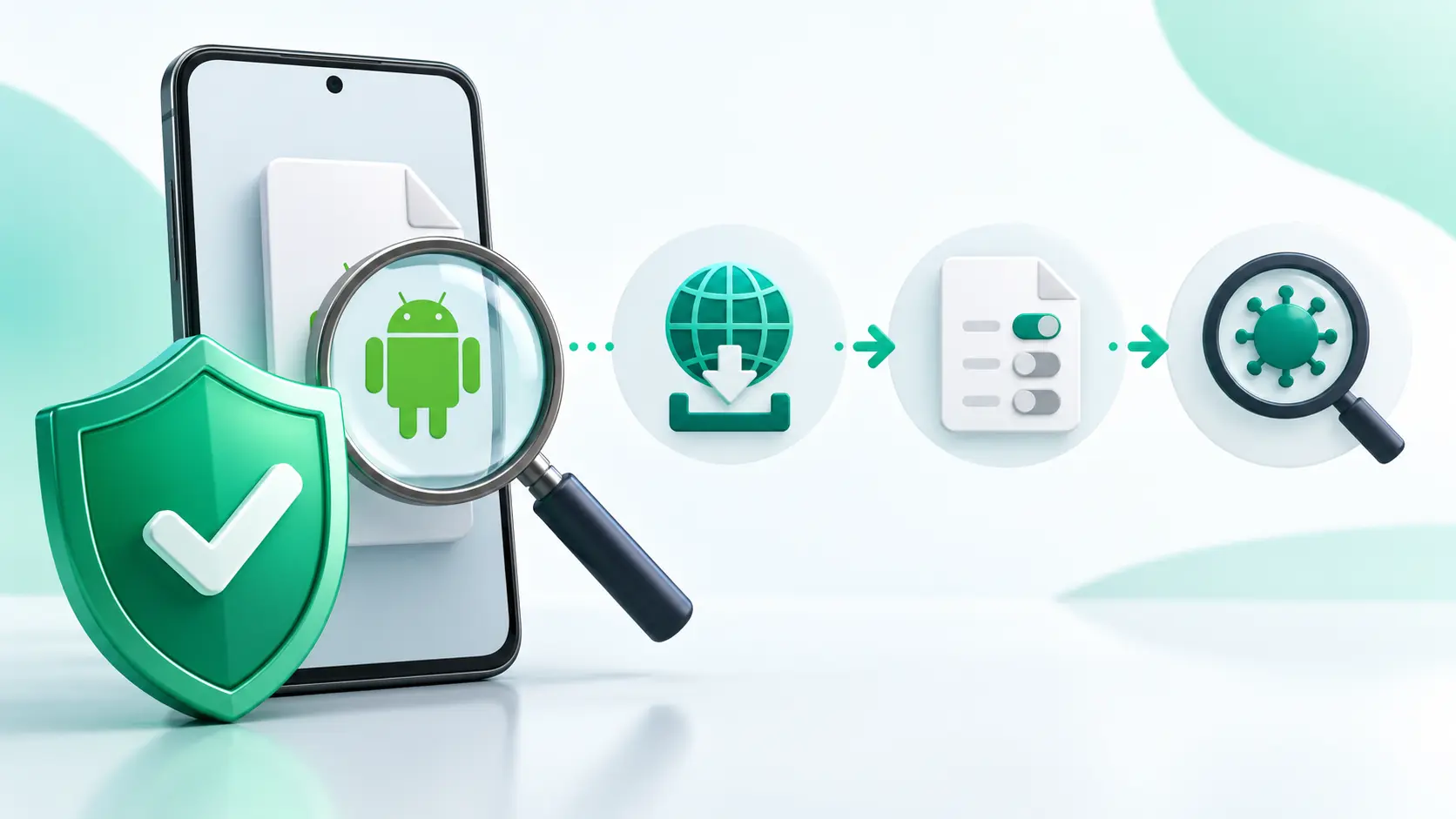
How to check an APK before installing starts with a simple question: can you verify who published this exact file? A logo, download count or “virus-free” badge is not enough. Use the checks below in order. Each one answers a different question, and no single check proves an app is safe.
1. Confirm the publisher and download source
Start with the developer’s official website or an established store where possible. Read the domain closely; an extra word or unusual spelling can imitate a legitimate site. Confirm that the page names a developer and identifies the app and release. Avoid forced redirects, unrelated installers and requests to enter account credentials before you can inspect the file. For source selection, see our Complete Guide to APK Downloads.
2. Match the version to your device
Compare the version, release date, supported Android version and package variant with information from the publisher. “Latest version” without an actual number gives you little to confirm. A single APK may not fit every device, and some apps use split packages or additional files. If a download page cannot explain what it offers, do not guess. Our APK, XAPK and AAB guide explains the formats.
3. Compare a trusted checksum, if available
Some developers publish a SHA-256 checksum beside an official release. Calculate the checksum of the file you downloaded and compare the full value against the developer’s trusted reference. A match can show that the file has not changed from that reference. It does not prove that the original app is harmless. A hash displayed only on the same untrusted download page is weak evidence. Read our APK integrity guide for a step-by-step explanation.
4. Check signing and be careful with updates
Android requires an APK to be signed. That signature identifies the signing key; it does not mean the app has been reviewed or approved. When an APK replaces an installed app, Android checks that the update has a compatible signing identity. A mismatch or unexpected demand to uninstall the old app is a reason to stop. Uninstalling can remove local data, so verify the publisher and back up important information before making changes.
5. Review permissions in context
Look at permission requests during installation and first use. A photo editor may reasonably need access to selected photos, but a basic calculator asking for contacts or SMS access needs a clear explanation. Android may ask for permissions at different moments, so a quiet install screen does not mean the app will never request more. Deny access you do not understand and reconsider the app if its main feature will not work without unrelated permissions.
6. Keep Play Protect on and respect warnings
Google Play Protect checks apps for potentially harmful behavior, including some apps installed from outside Google Play. Let it scan and take its warnings seriously. A clean result reduces uncertainty, but cannot guarantee that a new or deceptive app is safe. If Android warns about harmful software, do not override the warning just to finish an install. Return to the publisher’s official listing instead. Google explains these checks in its Play Protect help page.
7. Decide whether installing is worth it
Before you open the file, confirm the publisher, source, version and compatibility. Compare a trustworthy checksum if one exists. Consider the app’s requested access and any security warnings. If a critical point remains unclear, wait for better information. Our Complete APK Safety Guide covers the wider safety process.
If the app is available through Google Play, read APK vs Play Store Apps before deciding which route to use. Once you have verified an official direct download, follow How to Install APK Files. If the installer fails, our APK installation fixes help diagnose common causes without trying random files.
If the download is an XAPK instead of a standalone APK, check the bundled files and the separate installer. Use our Is XAPK Safe? checklist for those additional decisions.
FAQ
Can a clean antivirus scan prove an APK is safe?
No. A scan may miss new threats or behavior that only appears later. Check the publisher and source as well.
Is every signed APK trustworthy?
No. Signing is required for Android installation and helps identify updates. It is not a safety certificate.
What if the developer does not publish a checksum?
Use the other checks, especially the official source and publisher identity. Do not invent a checksum comparison from an untrusted page.