APK Installation Failed on Android? 12 Easy Fixes 2026
Description
APK Installation Failed on Android? Here’s What to Do
APK installation failed on Android? This guide helps you identify the cause and choose the right fix.
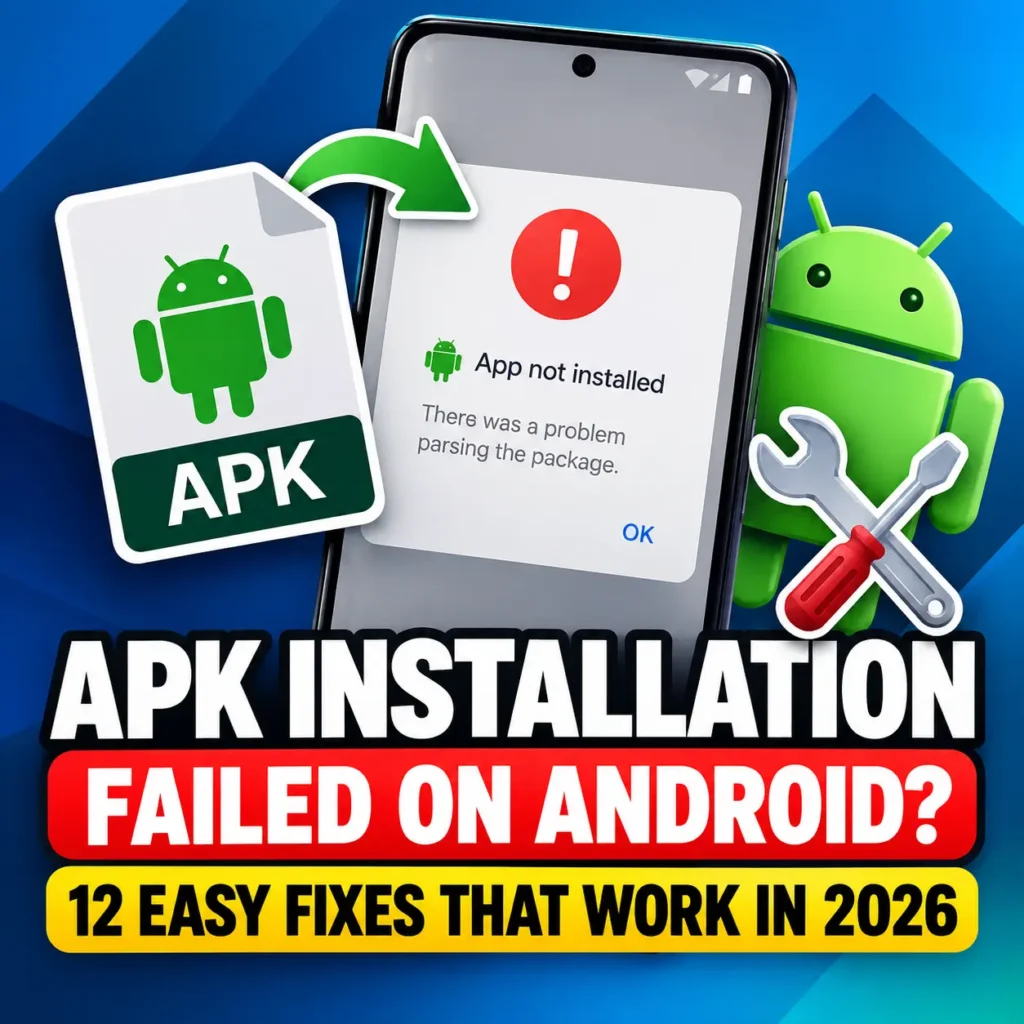
You may see messages such as:
- App not installed
- There was a problem parsing the package
- Installation failed
- Package appears to be invalid
- App conflicts with an existing package
These errors are common and usually do not mean your phone is damaged.
In most cases, the problem comes from an incompatible APK, insufficient storage, an old app version, Android security settings, or a corrupted download.
This APK installation failed guide explains the most common causes and 12 practical fixes. If you are new to APK files, start with our Complete Guide to APK Downloads.
Why Does APK Installation Fail?
Android checks an APK before allowing it to install.
If something looks incompatible or unsafe, the installation may stop.
Common causes include:
- APK is not compatible with your Android version
- APK file is damaged
- Not enough storage is available
- Another version of the app is already installed
- Installation from unknown sources is disabled
- APK architecture does not match your device
- The APK is a split package
- App signature does not match the existing installation
Start with the exact error rather than trying every fix. For App not installed, check storage, the package variant and any existing installation. For Package appears invalid, use our invalid package troubleshooting guide. For an unsupported device, check our APK compatibility guide. A Play Protect warning needs a separate security review, not more installation permission.
12 Easy Fixes for APK Installation Failed on Android
1. Download the APK Again
A partially downloaded APK may fail during installation.
Delete the current file and download it again from a source you trust.
Also make sure the download finishes completely before opening the APK.
For better safety, read our Complete APK Safety Guide before installing files from outside Google Play.
2. Check Your Android Version
Some APKs only work on certain Android versions.
For example, an app made for a newer Android release may not support an older phone.
Go to:
Settings → About Phone → Android Version
Then check the minimum Android requirement of the APK.
If your Android version is too old, try an older compatible app version instead.
3. Allow Installation From Unknown Sources
Android may block APK installation if permission has not been given to your browser or file manager.
On newer Android phones:
Settings → Apps → Special App Access → Install Unknown Apps
Select the app you are using to open the APK, such as Chrome or Files.
Turn on:
Allow from this source
After installing the APK, you can disable this permission again if you prefer.
You can also read our Unknown Sources Installation Guide for the full process.
4. Make Sure You Have Enough Storage
Low storage can cause installation failures.
An APK may be 100 MB, but Android can require much more free space while extracting and installing the app.
Check Settings → Storage and follow any low-storage warning. There is no single free-space amount that works for every app: large games may need extra space for installation and additional downloads. Back up files you want to keep before removing them.
You can remove:
- Unused apps
- Large videos
- Old downloads
- Duplicate files
- App cache
Then restart the installation.
5. Check the Existing App Before Uninstalling
Sometimes an APK cannot replace an already installed version.
This often happens when the two apps use different digital signatures.
For example, the Play Store version and a third-party APK may not share the same signing certificate.
First try the official update from the same publisher and distribution source. Uninstalling can erase local saves, downloads, settings and sign-in data; a phone backup may not restore everything. Export or sync important data and confirm recovery before considering a clean installation. See our APK signature mismatch guide for this specific conflict.
Then:
Settings → Apps → Select App → Uninstall
After that, try installing the APK again.
6. Check Whether the APK Is Corrupted
A corrupted APK may show errors such as:
There was a problem parsing the package
or
Package appears to be invalid
Possible causes include an interrupted download or a modified file.
Download the APK again and compare its file size with the original source when possible.
For additional checks, see our guide on How to Check an APK Before Installing.
7. Check APK Architecture
Android devices use different CPU architectures.
Common examples include:
- arm64-v8a
- armeabi-v7a
- x86
- x86_64
Most modern Android phones use arm64-v8a, but not every device is the same.
If you download an APK made for the wrong architecture, it may fail to install or crash after installation.
Choose the variant designed for your device.
8. Check Whether It Is a Split APK
Not every Android app is distributed as one normal .apk file.
Some apps come as:
.apks.xapk.apkm- multiple split APK files
These packages may contain the main application plus language, graphics, or device-specific files.
Trying to install only one part can result in an error.
You can learn the differences in our APK vs XAPK vs AAB guide.
9. Restart Your Android Phone
A restart may fix temporary Package Installer problems.
Restart your phone and try the installation again.
This simple step can clear temporary system processes that may be interfering with the installer.
10. Clear Package Installer Cache
On some Android devices, clearing the installer cache can help.
Go to:
Settings → Apps → Show System Apps
Find an app called:
- Package Installer
- Package Manager
Then open:
Storage → Clear Cache
Avoid clearing system data unless you understand what the option does.
After clearing the cache, restart the phone and try again.
11. Check the APK Signature
Android uses digital signatures to identify app developers and verify updates.
If an existing app and a new APK have different signatures, Android normally will not allow one to replace the other.
You may see an installation conflict even if both apps have the same package name.
The safest solution is usually to use the official update from the same source as your existing installation.
12. Avoid Forcing Incompatible APKs
You may find methods online that claim to bypass Android compatibility or security checks.
Be careful.
Those restrictions can exist because the APK was built for different hardware, a different Android version, or uses an invalid signature.
Forcing an incompatible APK can cause:
- Crashes
- Data loss
- Security risks
- Battery drain
- Login problems
Instead, find a version that officially supports your Android device.
APK Installation Failed vs App Not Installed
These terms are often used for the same general problem, but the exact cause can be different.
App Not Installed commonly appears because of signature conflicts, incompatible packages, insufficient storage, or invalid APK files.
If your phone specifically shows App Not Installed, read our detailed App Not Installed on Android fixes guide.
How to Install an APK Correctly?
A normal APK installation usually looks like this:
- Download the APK.
- Verify that the source is trustworthy.
- Check the APK version and Android requirements.
- Enable installation permission for your browser or file manager.
- Open the APK.
- Tap Install.
- Wait until Android finishes installing the app.
- Disable unknown-source permission afterward if you no longer need it.
For beginners, our How to Install APK Files guide explains the entire process step by step.
Is It Safe to Install APK Files?
APK files are not automatically dangerous.
They are simply Android application packages.
However, files downloaded from unknown or untrusted websites can potentially contain modified or malicious code.
Before installing an APK:
- Use trusted sources
- Scan suspicious files
- Check app permissions
- Avoid unknown modified versions
- Keep Google Play Protect enabled
- Back up important data
Read the Complete APK Safety Guide for more APK security tips.
Frequently Asked Questions
The APK may be incompatible with your Android version, conflict with an existing app, have a different signature, or be corrupted.
This usually means the APK is damaged, incomplete, or not compatible with your Android version.
Yes. Android needs enough free storage to unpack and install the application.
Only when necessary. If the new APK has a different signature, uninstalling the existing version may fix the conflict. Back up important data first.
No. A normal APK is usually a single installation package, while XAPK files can contain the APK plus additional files or split packages.
Conclusion
An APK installation failed error is usually easy to solve once you identify the cause.
Start by downloading the file again, checking your Android version, confirming available storage, and enabling the correct installation permission.
If the problem continues, check the APK architecture, package format, digital signature, and whether another version of the app is already installed.
Avoid forcing APK files that are not compatible with your device. Using the correct version is safer and usually fixes the problem faster.