Android Developer Verification Blocked APK? What to Do Safely (2026)
Description
If Android shows a message that an APK is blocked because the developer is not verified, the warning is part of Android developer verification. Starting in September 2026, Android began requiring apps from participating stores on certified Android devices in Brazil, Indonesia, Singapore and Thailand to be registered by verified developers before normal installation or updates. Google says a wider rollout will follow in 2027 and beyond.
What Is Android Developer Verification?
Developer verification is an identity and app-registration system. It checks whether the person or organization distributing an Android app has completed Google’s verification process and registered the app package. Google describes it as an extra accountability layer against scams and repeated malware distribution.
Verification does not mean Google has reviewed every feature inside the APK or guarantees that the app is safe. It mainly confirms developer identity and app registration. You should still check the source, permissions, package name and signing information before installing an APK.
Why Is Android Blocking the APK?
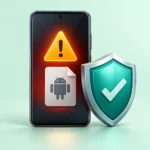
On an affected certified Android device, a normal installation can be blocked when the app is not registered to a verified developer under the new system. The rollout applies first to participating stores in the initial countries. A warning can therefore appear even when the APK itself downloaded correctly.
- The developer may not have completed identity verification.
- The developer may be verified but the package has not been registered correctly.
- You may be installing an old or unofficial copy distributed outside the developer’s current release path.
- The package name or signing identity may not match the app the developer registered.
What to Do Safely When an APK Is Blocked
1. Confirm the exact warning
Read the full Android message. A developer-verification block is different from Play Protect malware warnings, an “App not installed” error or a signature mismatch. Using the correct fix matters because these errors have different causes.
2. Go back to the developer’s official source
Check the app’s official website, verified store listing or developer-controlled release page. If a newer registered build exists, use that instead of an old mirror copy. Our Complete Guide to APK Downloads explains how to identify a safer download path.
3. Check whether the developer has addressed verification
For an open-source or independently distributed app, review the project’s current release notes or support channel. Developers can verify their identity and register packages through Google’s developer systems. If the developer is still completing that process, waiting for an official registered release is usually safer than looking for a random replacement APK.
4. Verify the APK before making an exception
Google’s Android Help says experienced users can choose a one-time advanced flow to proceed with an unverified app. That option should not be treated as a shortcut for unknown downloads. Before making any exception, verify the publisher, source, package name, requested permissions and file integrity. Read our How to Check an APK Before Installing and APK Integrity Verification guides first.
5. Do not disable unrelated security protections
A developer-verification message is not a reason to turn off Play Protect, remove device security or install “verification bypass” tools from third-party sites. Those actions can create a larger security problem without fixing the real registration issue.
Developer Verification vs Play Protect
These protections are related to Android safety but they are not the same. Developer verification focuses on the identity of the developer and registration of the app. Play Protect can scan apps and warn about potentially harmful behavior. An app being developer-verified does not automatically mean every future version is risk-free.
If your message specifically says Play Protect blocked an APK, use our Play Protect Blocked an APK? guide instead.
Which Countries Are Affected in 2026?
Google’s current Android Help documentation says the initial September 2026 rollout covers certified Android devices in Brazil, Indonesia, Singapore and Thailand for apps downloaded from participating stores. Google has also said the requirement will expand globally in 2027 and beyond.
Because the rollout is staged, users in different countries or stores may not see exactly the same behavior at the same time. Check Google’s current Android developer verification help page for the latest rollout details.
If You Are the App Developer
If users report this block on your legitimate app, review Google’s Android Developer Console or Play Console verification requirements. Developers distributing to certified Android devices may need to verify identity and register package names. The fix should happen in the official developer account and release process rather than asking users to weaken security.
Frequently Asked Questions
Does developer verification mean the APK is completely safe?
No. Verification confirms developer identity and package registration. It is not a full security review of everything an app can do.
Can an unverified APK still be legitimate?
Yes. A legitimate independent developer may still be completing registration or distributing in a way affected by the rollout. You should verify the project carefully instead of assuming either safety or danger from the verification status alone.
Is this the same as Unknown Sources?
No. “Install unknown apps” controls which app on your phone can start a sideloaded installation. Developer verification adds a separate identity and package-registration check. See our Unknown Sources Installation Guide for that setting.
What if the APK is official but still blocked?
Check the developer’s newest official release and support information. The package may need registration, or you may have an older build that is no longer the developer’s recommended distribution path.
Conclusion
An Android developer verification block is a new kind of installation check, not simply another “unknown sources” error. The safest response is to confirm the warning, return to the official developer source, verify the APK and use Google’s documented options only when you fully trust the app. For broader sideloading safety, keep our Complete APK Safety Guide handy.