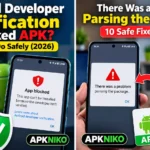
APK Package Appears Invalid on Android? 7 Safe Fixes (2026)
Description
Seeing an ‘App not installed as package appears invalid’ message? This guide covers seven safe troubleshooting checks. The exact text may differ on different Android phones, and no single step guarantees a fix.
What Does ‘App Not Installed as Package Appears Invalid’ Mean?
The wording differs across Android versions. An invalid package warning means Android could not accept the installation package in its current form. Possible causes include an incomplete or damaged download, a format the current installer cannot handle, a mismatched package structure or a file that is not the expected Android application. The message alone does not identify one certain cause.
Step 1: Confirm the Download Source
Return to the developer’s official website or a trustworthy distribution channel. Check that the download belongs to the app you intend to install. Avoid modified APK packages advertised as unlocked or premium for free. A misleading file name is easy to create and is not proof that the package is genuine. Read the APK safety guide before continuing.
Step 2: Download the File Again
An interrupted transfer or incomplete file may produce an invalid package. Delete only the suspect installer file, not your installed app or its data. Download the package again on a stable connection, then compare the file size or checksum with the developer’s published value when one is provided. Do not assume that a file is safe merely because the second download finishes.
Step 3: Check APK Versus XAPK or Split APK
Some Android apps are delivered as multiple split packages rather than one standalone APK. Renaming .xapk or .apks to .apk does not convert its contents into a valid single installer. Use the developer’s recommended distribution method, or the official app store when available. Learn how these formats differ in our APK vs XAPK vs AAB comparison.
Step 4: Confirm Android Version and Device Support
Look for the minimum supported Android release and device requirements on the developer’s official page. A package designed for another processor or incompatible Android version may fail to install. You can check your Android version under Settings > About phone. Do not download random compatibility patches. If the official release does not support your device, use a supported version only if the developer provides one and it remains secure.
Step 5: Do Not Replace an Installed App Blindly
If an app with the same package name is already installed, an update may fail when its signing certificate differs from the installed version. Before taking any action, make a supported backup or confirm that your account syncs progress. Uninstalling the current app may permanently delete local data. Follow our APK signature mismatch troubleshooting guide instead of repeatedly removing and reinstalling apps.
Step 6: Check Available Storage and Device Settings
Installation needs some free space beyond the size of the downloaded package. Remove unnecessary downloads or move personal media to trusted storage if space is low. Restart the phone and try the official package once more. If you install through a trusted browser or file manager, grant its installation permission only when needed, then disable it. Our step-by-step APK install guide explains this process.
Step 7: Keep Play Protect Enabled
A security warning is different from a routine corrupted-file error. Do not disable Google Play Protect or other phone safeguards to force a suspicious installation. Check the publisher, package details and security warnings before deciding whether to continue. If you cannot verify the file, stop. See what to do if Play Protect blocks an APK.
When to Stop Troubleshooting
Stop if the publisher is unknown, the website requests unrelated sensitive permissions or the package signature unexpectedly changes. Also stop when the app requires a modified system, a risky workaround or an unsupported Android version. A legitimate developer or app-store listing is a better next step than experimenting with unknown installer tools. If the message persists with the official package, contact the app publisher and include your Android version, device model and the exact error wording—without sending private files.
Frequently Asked Questions
Can I fix an invalid APK by changing the extension?
No. Renaming a file cannot repair a damaged APK or correctly combine split packages.
Will clearing the Downloads folder fix installation?
It may free storage, but it cannot solve a package signature or compatibility problem. Delete only files you do not need.
Should I uninstall the older app first?
Not until you have protected important app data and confirmed the developer’s guidance. Uninstalling may erase local data.
What if the file works on another phone?
Device-specific compatibility, Android version or existing app conflicts can explain different results.
Conclusion
Start with the original trusted download, then check integrity, format, compatibility, existing apps and available space. Protect your data before making changes, and never bypass a meaningful security warning.
More help: Common APK Installation Errors and How to Check an APK Before Installing.