Play Protect Blocked an APK? What to Do Safely (2026)
Description
If Play Protect blocked APK installation, treat the warning as a reason to verify the app before doing anything else. A warning does not automatically prove the file is malicious, but it is an important security signal. Before sideloading, review our Complete Guide to APK Downloads and How to Install APK Files.
This guide explains what Play Protect does, why it may block an APK, and which checks are safer than simply turning protection off. For a broader checklist, read our Complete APK Safety Guide.
What is Google Play Protect?
Google Play Protect is part of Android’s security system. It can scan apps, warn about potentially harmful behaviour, and check apps installed from outside Google Play. Its warnings can change as Google receives new information about an app or developer.
Identify the Warning Before Choosing a Fix
Separate an installation permission, a scan request and a harmful-app warning. They ask different questions. The wording may vary by device, so read the full message rather than deciding from a button label alone.
| What you see | What to do next |
|---|---|
| The browser or file manager is not allowed to install apps | This is a source permission. Check the file first, then follow the unknown-app installation guide for that source app. |
| Play Protect asks to scan an unfamiliar app | Review the scan request. Google says a scan can send app details for code-level evaluation. Read the result before deciding whether to continue. |
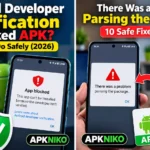
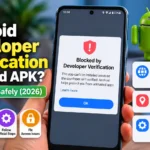
| The app is blocked or identified as potentially harmful | Keep the block in place. Recheck the publisher and ask the developer about the exact release; do not choose a random replacement APK. |
| The device is not Play Protect certified | Device certification is a separate issue. Follow Google’s certification guidance rather than turning app scanning off. |
Check the Current Play Protect Result
Open Google Play, tap your profile icon and choose Play Protect. Review any listed concerns. Its settings include Scan apps with Play Protect; keep that protection enabled. Google documents these checks in its official Play Protect help.
Collect Useful Details Without Sharing Private Data
For a support request, note the app name, release version, publisher’s download page, Android version and exact warning. State whether it appeared before installation or while updating an existing app. This helps the developer investigate the correct build.
Crop unrelated notifications and private account information out of a screenshot. A helpful report describes the problem; it does not need a password, a verification code or a full account history. Until the warning is explained, use an official alternative or wait for the publisher’s response.
1. Play Protect blocked APK: read the exact warning
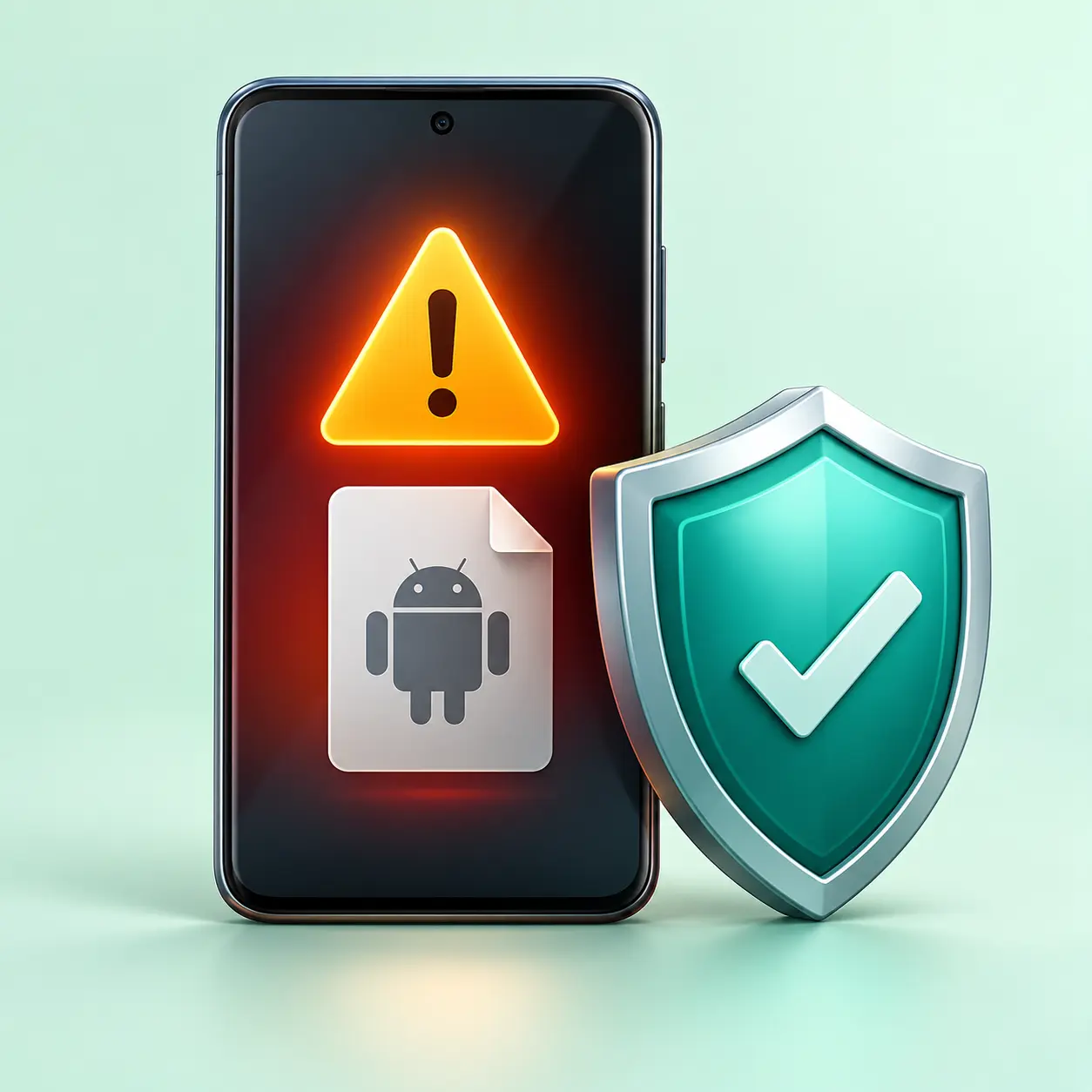
Do not close the warning immediately. Note the app name and the exact message. “App blocked,” “harmful app,” and “unknown app” can mean different things. Search the developer’s official documentation for the app and version you intended to install.
2. Play Protect blocked APK: verify the publisher
Next, check whether the APK came from the app developer, an official store, or another source. A familiar logo is not enough. Compare the developer name, package name, version, and official website. Our guide on how to check an APK before installing covers these details.
3. Check the file integrity
Then, if the developer publishes a checksum, compare it with your downloaded file. A mismatch means the file is not the exact build the publisher described. Learn more in How to Verify APK Integrity.
4. Review permissions
Also, think about whether the requested permissions make sense for the app. A simple wallpaper app should not normally need access to SMS, calls, contacts, accessibility services, or device administration. High-risk permissions deserve extra caution.
5. Check whether an official Play Store version exists
In addition, if the same app is available on Google Play, compare the publisher, icon, package, version, and update history. An official store listing can help confirm identity, although it is still important to review permissions and developer information.
6. Keep protection on after a Play Protect blocked APK warning
Turning off security protection removes a useful warning layer. If you cannot independently confirm the app and source, the safer choice is to stop. Look for an official alternative instead of forcing the installation.
What if you trust the developer?
Finally, contact the developer if you trust the source but still see a warning. Share the app version and exact message. The developer can investigate and appeal a mistaken classification through Google. Meanwhile, wait for a verified fix. Do not treat a suspected false alarm as proof of safety.
Play Protect blocked APK: common questions
Does a Play Protect warning always mean malware?
No. Warnings can have different causes. But you should investigate before installing.
Can I scan the APK with another service?
You can use additional scanning as one signal, but a clean result does not guarantee an app is safe. Source, signature, permissions, and behaviour still matter.
Should I turn Play Protect off?
It is better to keep Play Protect enabled. If an app cannot be verified, do not install it just to bypass the warning.
Conclusion
If you see a Play Protect blocked APK warning, start with the exact message. Then check the publisher, file integrity and permissions. Keep protection enabled. If the warning remains unresolved, choose an official alternative or wait for the developer’s verified fix.