How to Update an APK Without Losing Data on Android (2026)
Description
You can often update APK without losing data on Android. First, check that the new file has the same package name and a compatible signing certificate. The biggest mistake is uninstalling the old app before checking those details.
This guide explains a safer update process. For general installation steps, see How to Install APK Files.
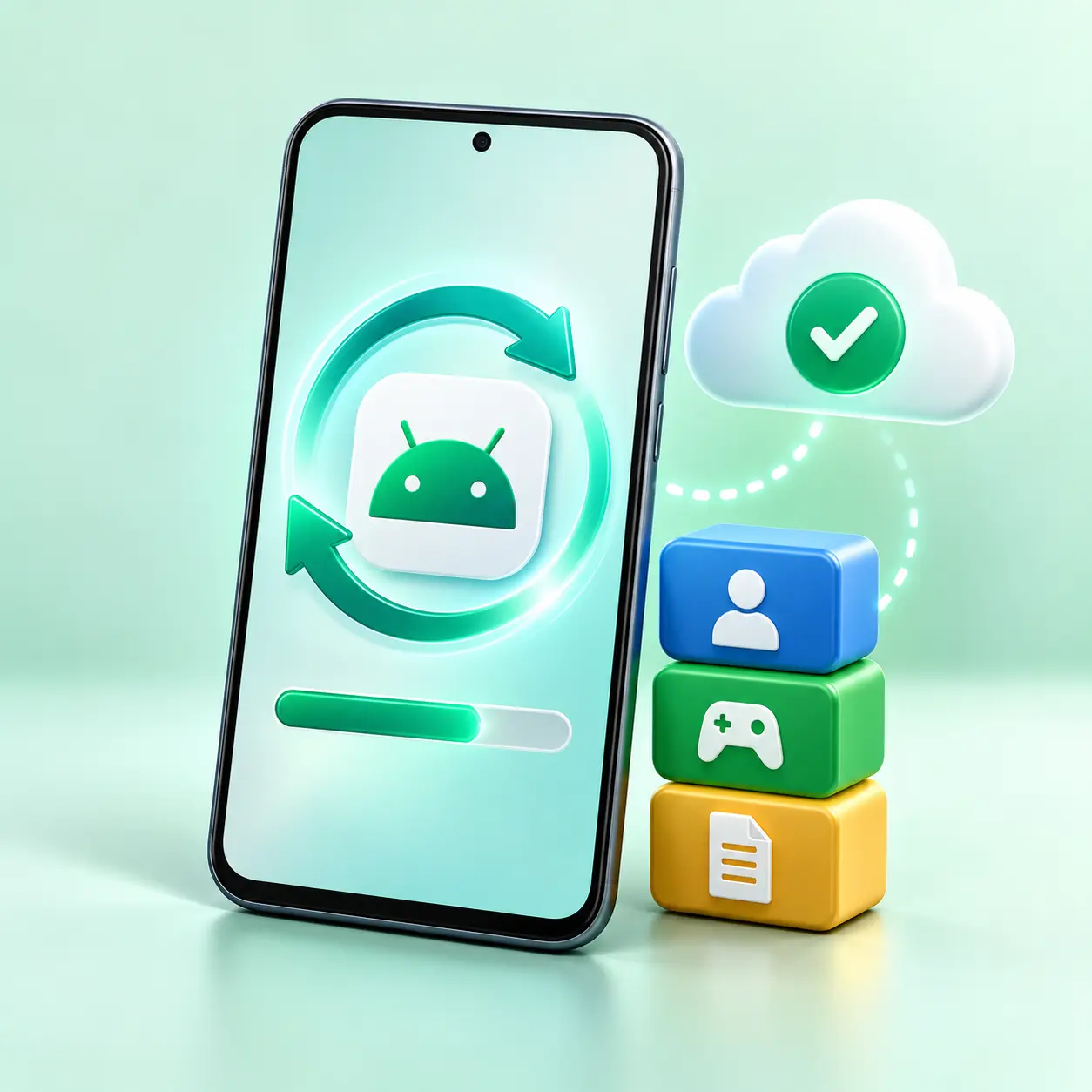
How to update APK without losing data
Android usually installs a new version over the existing app. Your app data stays in place when the package identity and signing certificate match. If the signature is different, Android may reject the update instead of replacing the installed app.
1. Back up before you update APK without losing data
First, use the app’s cloud sync, export or backup feature. Then confirm that you can access the backup. Also, check whether Android backup covers this app. Apps store progress in different ways. Therefore, do not assume your phone saves everything.
2. Update APK without losing data: match the package
Next, the new APK should use the same package name as the installed app. If the package is different, Android treats it as another app instead of an update. Our APK checking guide explains why package identity matters.
3. Confirm the signing certificate
Also, the new build needs a signing certificate Android accepts for the installed app. Most updates use the same certificate. Some publishers use a supported signing-key rotation. If the certificate changes unexpectedly, Android can show an “App not installed” message. Do not uninstall the existing app just to bypass that check unless you have backed up the data and verified the new publisher.
4. Use the same trusted source
For example, update from the same official source you used before when possible. Mixing builds from different websites can create signature or version conflicts. Check our Complete Guide to APK Downloads for source checks.
5. Check version numbers
Then, check that the new release has a higher version code than the installed app. Android may refuse a downgrade. If you need an older version for compatibility, check the developer’s instructions first.
6. Keep enough free storage
In addition, Android needs temporary storage while updating. Keep extra free space beyond the APK file size. If storage is very low, clean unnecessary downloads before starting.
7. Update APK without losing data: install over the old app
Finally, after verifying the file, open it and follow the normal Android installer. Do not manually remove the current app first. If Android recognizes the same package and signature, it should offer an update rather than a fresh installation.
If the update fails
Common causes include signature mismatch, lower version code, damaged download, unsupported Android version, or split APK requirements. See APK Installation Failed on Android? 12 Easy Fixes for troubleshooting.
Update APK without losing data: common questions
Will updating an APK delete my game progress?
Normally an in-place update keeps local app data, but apps can store progress differently. Back up or sync important progress first.
Why does Android say the package conflicts with an existing package?
The package identity or signing certificate may not match the installed app. Verify the source before making changes.
Can I uninstall and reinstall without losing data?
Uninstalling often deletes local app data. Do not rely on reinstalling unless you know the app has cloud sync or a separate backup.
Conclusion
To update APK without losing data, start with a backup. Then verify the package name, signing identity and source. Install the newer APK over the current app. However, no update can guarantee data retention, so keep your backup until you confirm everything works.
For technical details, see the official Android app-signing documentation.