Unknown Sources Installation Guide
Description
To install APK from unknown sources on Android, you may need to allow your browser or file manager to install unknown apps. The label ‘unknown sources’ refers to software installed outside the usual store route. It does not mean that the file has passed a safety check. Only use the permission after you have verified the publisher and package.
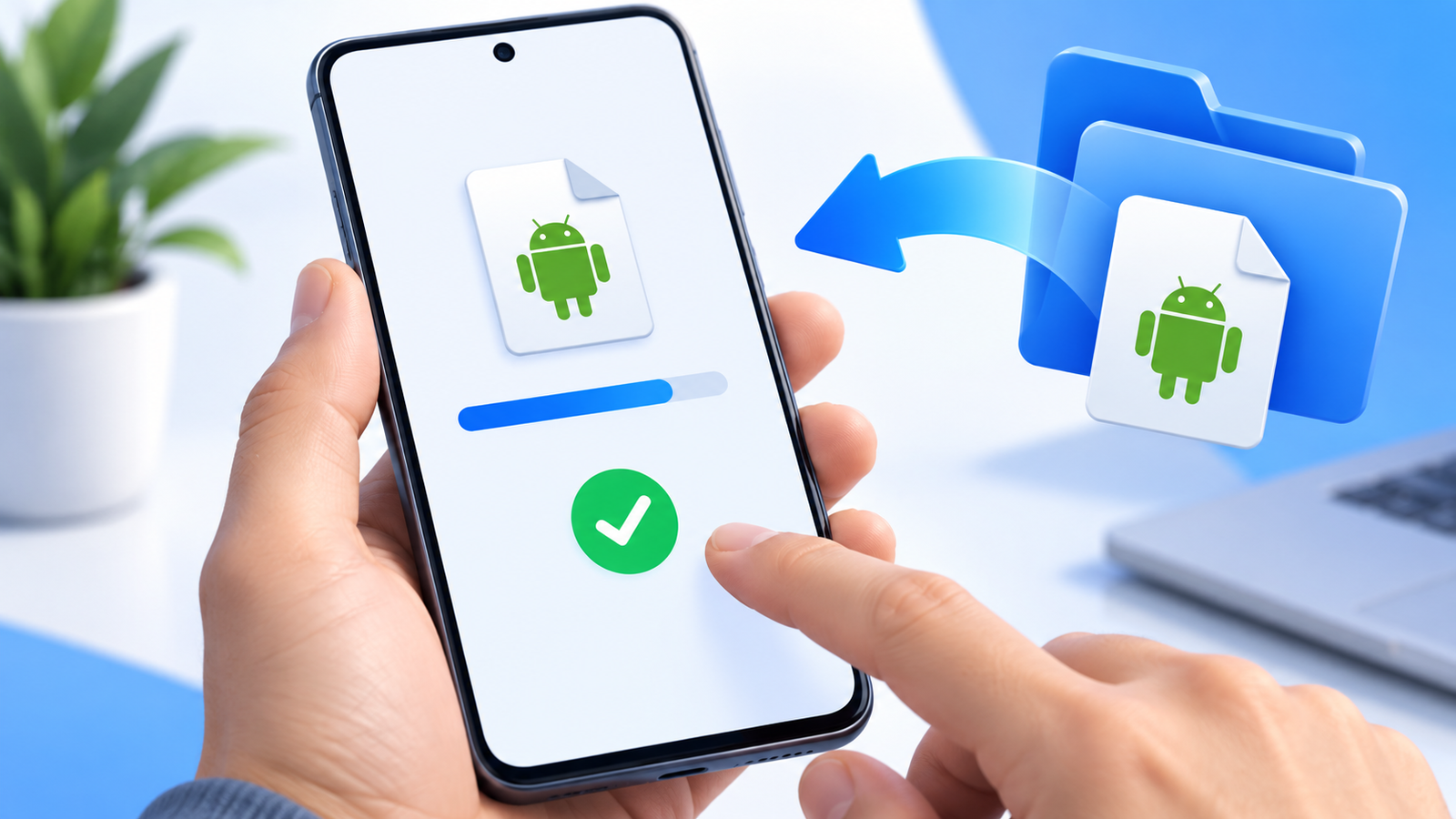
How to install APK from unknown sources safely
On Android 8.0 and later, installation permission is normally granted separately to each source app. On Android 7.1 and earlier, you may see a device-wide Unknown sources switch. Menu names depend on the manufacturer and Android version.
Where to find Install unknown apps
Search Settings for Install unknown apps. A common route is Settings → Apps → Special app access → Install unknown apps. Select the browser or file manager you actually use to open the APK. If that route differs, follow your phone manufacturer’s instructions rather than changing unrelated permissions.
Allow from this source permits that app to start installations; it does not certify any APK as safe.
Before you begin
Prefer an official store when the same app is available there. Otherwise, confirm the developer’s official download page, version, compatibility and permissions. Back up important app data before replacing an installed release. Avoid packages advertised as cracked or modified copies of another developer’s app.
Step-by-step installation
- Download the APK from the developer’s verified source. Check the app name and version before opening it.
- Open Downloads in your file manager and tap the APK. If Android displays an installation-permission prompt, use its Settings button.
- Allow installation only for the app opening the file, such as Chrome or Files. Permission for Chrome does not automatically cover your file manager.
- Return to the installer and confirm the app is the one you intended to install. Stop if Play Protect reports a harmful app.
- Tap Install. After installation, open the app and grant only the permissions its features need.
- Return to the source-app settings and turn off Allow from this source when finished.
After you install APK from unknown sources
After installation, return to Settings and revoke ‘Install unknown apps’ for that source if you will not use it again. On many phones, you can search Settings for that phrase. This reduces the chance of an accidental installation from the same browser or file manager later. Keep Android security features enabled. Google’s Android Help guide to downloading apps also explains the risks of files from other sources.
The Permission Is On, but Android Still Blocks Installation
First confirm which app is opening the APK. If you downloaded it in Chrome but tapped it later in Files, the permission for Chrome does not automatically apply to Files. Return to the prompt for the app you actually used; do not enable every source on the phone.
| What is happening | A useful check | Avoid this shortcut |
|---|---|---|
| Chrome has permission, but Files shows a permission prompt | Check the permission for the file manager opening this package. | Turning on installation access for unrelated apps. |
| The installation switch is disabled on a work or school phone | Ask the device administrator about the approved installation route. | Removing management settings or trying to bypass the policy. |
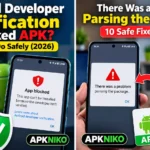
| The file still says invalid or cannot be parsed | Check the complete download and package format. | Renaming XAPK, AAB or an unfinished download to .apk. |
| A security warning names harmful software | Read the warning and use the Play Protect guide. | Treating installer permission as proof of safety. |
| An update conflicts with the installed app | Read the signing conflict guide and protect saved data. | Uninstalling the working app before investigating. |
As an example, granting installation access to a browser fixes only that browser’s permission barrier. It cannot change an app’s minimum Android version, repair missing split packages or explain an unexpected signing key. Those are separate problems with separate checks.
A Final Check for the Source App
After the intended installation, return to Install unknown apps and revoke access for the browser or file manager you used. If an APK opens in a different app next time, reassess that source. Menu labels can vary, so use your phone manufacturer’s instructions when the settings route differs.
If installation fails
If permission is already enabled, repeating this step will not fix an incompatible or incomplete package. Read the exact error: use our APK installation failed checklist for general failures, phone compatibility guide for unsupported devices, or Play Protect blocked an APK guide for security warnings. On a work or school device, an administrator may restrict installation; ask the administrator instead of trying to remove the restriction.
Related guides
For the complete workflow, read How to Install APK Files. Use the Complete APK Safety Guide before enabling any installer permission, and see our download guide to choose a source.
FAQ
Is enabling unknown sources safe? It removes an installation barrier for a source app. The safety of each file still depends on its publisher and behavior.
Must I leave it enabled for updates? No. You can grant permission again only when you have a verified update to install.