Fossify Gallery APK: Official Android Download & Photo Guide
Description
Fossify Gallery APK for Android is a useful option when you want to browse local photos without turning a gallery into another cloud account. The app focuses on viewing, organising and editing media already available to your phone. Before replacing an existing gallery, understand how its permissions, delete controls and backups work.
This guide follows Fossify’s project information and store listing checked on 15 October 2026. It is a source-based setup guide, rather than a recovery-service promise or a hands-on privacy audit.
What is Fossify Gallery?
Fossify Gallery is an open-source photo and video gallery. Its documented features include basic editing, sorting, a recycle bin, privacy controls and options for removing EXIF metadata. The official Android package is org.fossify.gallery, and its Google Play publisher is Fossify.
A local gallery and a cloud backup service do different jobs. Viewing a photo successfully in Fossify does not prove that another copy exists elsewhere. Likewise, switching gallery apps does not automatically move every cloud-only image into local storage.
The project promotes an experience without advertising or unnecessary permissions. That is a useful description of its design, but you should still inspect the actual access Android requests on your device. Our Android permissions guide explains common permission choices.

Fossify Gallery APK download and source checks
Use the button to open Fossify’s Google Play listing. APKNIKO does not provide a modified gallery package or a separate photo-unlocking service.
The Fossify Gallery project repository and F-Droid listing provide further information and alternative distribution details. Start from those project routes when you need an APK outside Google Play.
Stay with the same trusted update channel where possible. If Android reports a signing conflict after changing channels, avoid uninstalling until you understand what app-specific settings would disappear. Read our APK update guide before taking that step.
Give the gallery the media access you intend
On first launch, Android may ask about access to photos and videos. The exact choices depend on your Android version. Some phones support selecting individual images, while others present broader storage or media permissions.
Choose access that fits what you want the gallery to display. If you grant access to selected photos only, an incomplete library can be the expected result rather than a broken scan. Review the phone’s permission settings before reinstalling the app to fix missing pictures.
Begin with a small test folder containing copies of unimportant photos. Confirm you can view them, change sorting and understand the menus. This lets you learn the interface before using delete or move commands on a large collection.
For example, keep a folder called Gallery Test with three copied photos. Rename or edit one copy, then locate it in a file manager. That simple exercise shows where changes are going and prevents confusion between a folder view and the actual stored files.
Organise photos without losing track of originals
Choose a basic folder structure before moving hundreds of images. Camera photos, screenshots, downloads and exported edits are often useful starting points. You do not need a separate folder for every day or event unless that helps your own workflow.
Read the action label carefully. Moving, copying and adding a favourite are different operations. A copy creates another file; a move changes its location. A favourite marker helps browsing but should not be treated as an independent backup.
When you work with messaging-app folders, remember that another application may manage its own downloads. Changing a file’s location can affect where that app expects to find it. Test a few items before reorganising a whole folder.
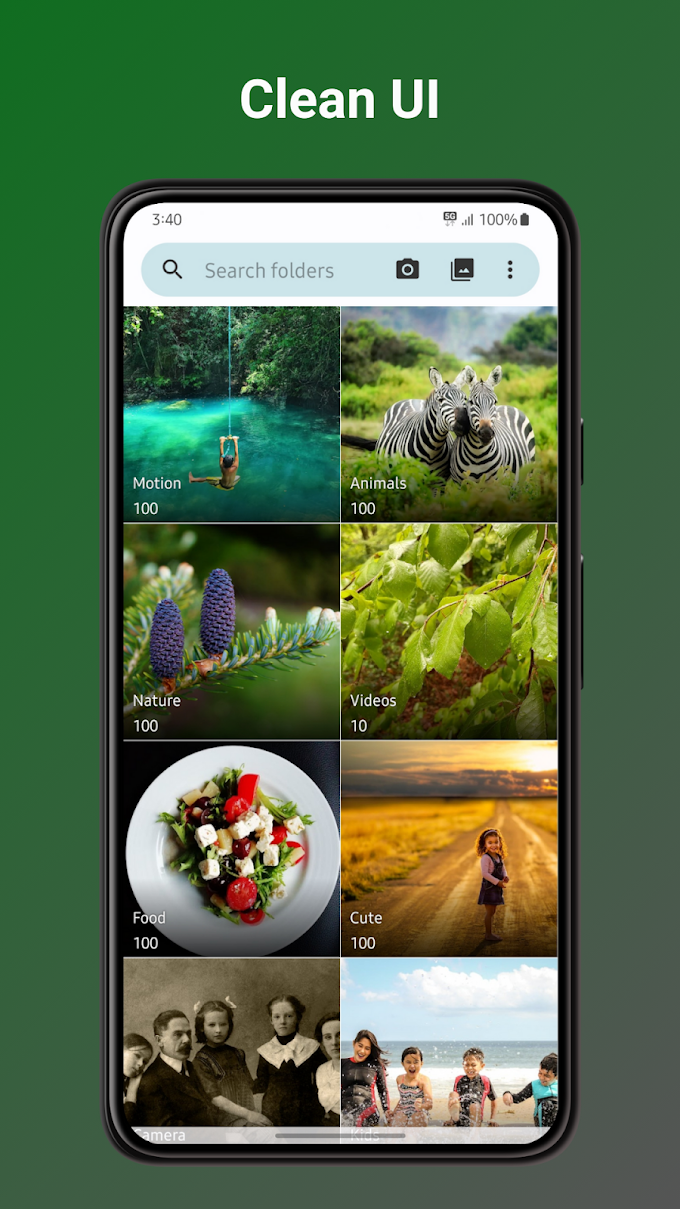
Our Fossify File Manager guide is helpful when you need to understand the underlying folders. Using a gallery and file manager together can make a storage problem clearer than repeatedly refreshing the gallery alone.
Edit a copy when the original matters
Fossify’s listed editing tools include cropping, rotating, resizing and drawing. These suit quick corrections, such as straightening a picture or preparing an image for a message. They are different from a specialist editor’s full set of retouching controls.
Before making changes, look for the save behaviour the current version offers. Keep an untouched copy if the photo is important. After saving, reopen the result and check the crop, orientation and readability at normal viewing size.
For a practical example, a screenshot of a delivery address may need only a crop to remove unrelated details. Make that copy first, then inspect it before sharing. A crop is often easier to verify than a heavy effect that changes the whole picture.
If you need AI photo enhancement, our Remini Android guide explains a different kind of editing tool. Check which task you actually need before adding another app for a feature you will rarely use.
Remove metadata before sharing sensitive images
Photo metadata can include details such as the capture time, camera model and location information, depending on how the file was created. Fossify documents options for removing EXIF information. Check the available setting and inspect the exported copy rather than assuming every shared file is automatically stripped.
Metadata removal does not hide information visible inside the picture. A street sign, a reflected screen or a document on a desk can still reveal details. Review both the file’s information and the actual image before sending it.
For example, someone sharing a picture of a new phone might remove location metadata but leave an address label visible behind it. Cropping the label and checking the metadata solve different parts of that problem.
Understand the recycle bin and privacy locks
A recycle bin can help recover files deleted through the app while they remain available there. It is not a guarantee that every deleted image can be restored. A file removed by another application, overwritten storage or an emptied bin may require a different approach.
Before cleaning a large folder, check the current recycle-bin behaviour. Delete one disposable test image and confirm you can locate and restore it. Then make a separate backup of irreplaceable media before proceeding with a bigger clean-up.
The project’s PIN, pattern or fingerprint controls can reduce casual access to private media. However, an app lock should not be treated as proof that every underlying file is encrypted or inaccessible through every other tool. Keep Android’s device lock enabled and use storage protection appropriate to the sensitivity of the files.
Troubleshooting missing photos and unsupported files
If photos do not appear, first confirm they are actually downloaded to the device. Next, check media permissions, folder exclusions and whether a file manager can locate the same file. A cloud thumbnail without a local original is different from a local image the gallery cannot display.
If one file fails, try opening a known-good photo in the same folder. This separates a damaged or unsupported file from a general gallery problem. A listed format does not mean every codec variation or damaged file will open correctly.
Avoid clearing app storage as the first step. Record the error and protect important files before resetting preferences. Our APK troubleshooting hub covers installer problems, which are separate from media-library access.
Frequently asked questions
Is Fossify Gallery APK a cloud backup app?
It is primarily a local media gallery. Keep a separate, verified backup arrangement for photos you cannot replace.
Can it recover every deleted photo?
No. Its recycle bin helps only where the relevant files are still available through that feature. It cannot promise recovery from every deletion scenario.
Why are only some photos visible?
Check whether Android granted access only to selected photos. Also confirm that missing images exist locally and are not excluded by folder settings.
Does an app lock encrypt all my pictures?
Do not assume that. Interface locks and file encryption are different protections. Read the current project documentation for the exact feature you use.
A sensible first setup
Install the genuine Fossify Gallery, test it with copied photos, and learn its save and delete behaviour before reorganising your library. It can make local browsing simpler, while a separate backup protects against device loss. For source checks, use our complete APK safety guide.
Sources checked: 15 October 2026. Feature references come from the linked Fossify project and F-Droid pages and the Fossify website. Icon and screenshot identify the app using its official store media.