Mullvad VPN APK for Android: Official Download & Paid Setup Guide
Description
Mullvad VPN APK for Android is the installer for Mullvad’s paid VPN service. Downloading the app does not include free VPN time. Before paying, check that your phone supports the current app, understand how its numbered account works and decide which Android connection settings you actually need.
This guide uses Mullvad’s official information checked on 15 October 2026. It does not claim an independent security audit, measured speed result or guaranteed access to a particular website.
What is Mullvad VPN for Android?
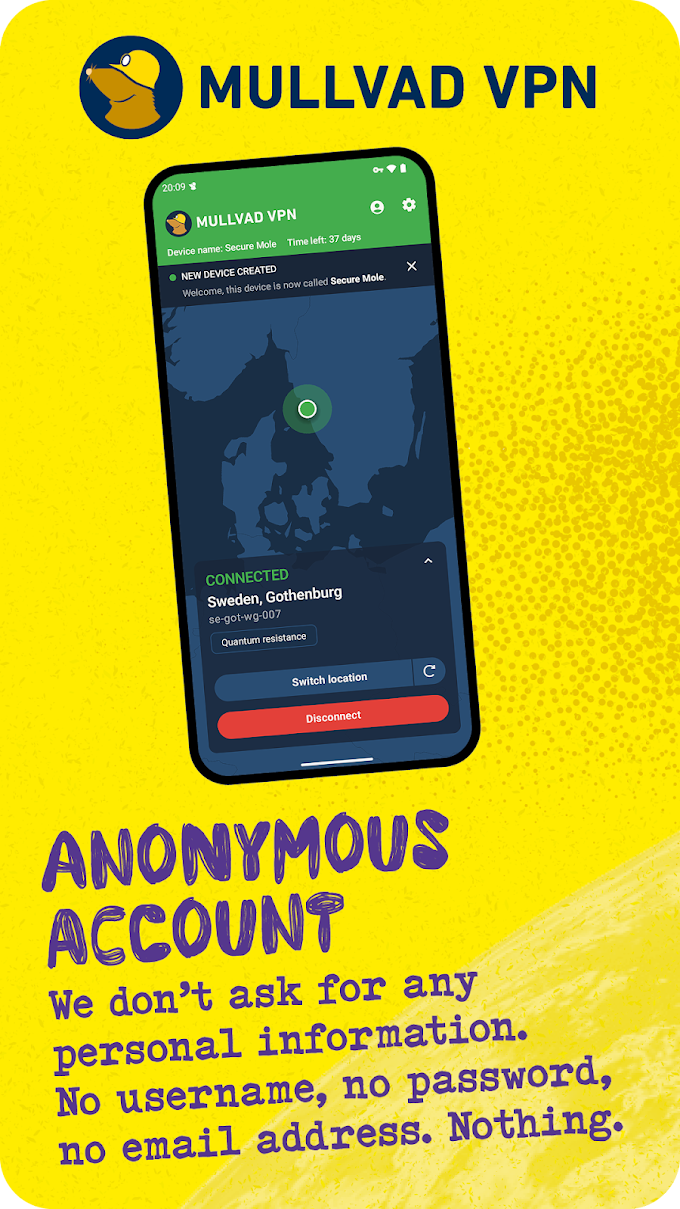
Mullvad provides a VPN connection between your device and its servers. The Android listing identifies the publisher as Mullvad VPN AB and the package as net.mullvad.mullvadvpn. The provider uses an account number instead of requiring an ordinary email-and-password account.
A VPN changes the network route used by covered traffic. It does not remove information you submit to a website, protect a password you give to a scammer or make an untrusted APK safe. Choose the service for a specific networking or privacy need rather than expecting complete anonymity from one application.
Mullvad’s privacy claims are the provider’s statements. Read its documentation and current policies as part of your decision, especially before using a VPN for sensitive work. APKNIKO has not independently verified every part of the service.

Mullvad VPN APK download for Android
The button opens Mullvad’s genuine Google Play listing. It does not purchase VPN time or begin a paid subscription through APKNIKO.
The official Android download page provides the provider’s current installation routes. If you need an APK outside Google Play, follow that page’s links and check the accompanying instructions. Avoid a modified package advertising free Mullvad time or unlocked premium access.
Check Android compatibility on the current listing. File size and system requirements can change between builds. Our APK download guide and APK safety guide explain how source checks differ from trusting a familiar app name.
Understand the paid account before adding time
At the source check, Mullvad’s pricing page lists a flat rate of €5 per month. The final amount or payment options shown through a particular store can differ, so review the actual checkout before agreeing to a purchase. No payment is required to read this guide or open the download link.
The account number is important. Save it securely before relying on the service. If you use both the website and Android app, confirm that they show the same account before adding time. Mullvad’s Android setup instructions specifically explain this to prevent payments going to a different account from the one in the app.
For example, creating an account in the app and another on the website gives you two separate account numbers. Paying the website account will not automatically fund the other one. Check the number rather than assuming that two screens on the same phone refer to the same account.
Keep account details out of public screenshots or support posts. If you lose access, use the provider’s recovery guidance for your payment method. Do not assume an ordinary email reset is available for a numbered account.
Make a simple first connection
Install the genuine app, sign in with the intended account number and check that the account has valid time. Start with an ordinary connection rather than changing several advanced options immediately. Review Android’s VPN connection prompt before approving it.
After connecting, check the app’s connection status and load a normal HTTPS website. This is a basic connectivity check, not a comprehensive privacy or leak audit. If a website fails, note whether all browsing is affected or only that service.
Try the connection on the network where you expect to use it. A successful session on home Wi-Fi does not prove that every mobile network or public hotspot will behave the same way. Keep a record of the network and error if a problem occurs repeatedly.
You can compare the general setup model with our WireGuard Android guide. WireGuard is a VPN technology and client option; installing a generic client does not itself provide a Mullvad account or paid service time.
Understand always-on VPN and blocking without VPN
Android provides settings commonly called Always-on VPN and Block connections without VPN. Mullvad’s Android guide explains how its auto-connect and lockdown behaviour relates to those system controls. Read the current instructions before enabling them, because the choice affects what happens when a tunnel is unavailable.
Blocking connections without a VPN can also affect traffic you intended to send outside the tunnel. The provider documents interactions with split tunneling and local-network access. Do not enable several controls and assume their effects simply add together without exceptions.
Test your actual needs: ordinary browsing, a local printer and any application you intend to exclude. If a task stops working after a setting change, record the previous setting and reverse that specific change for diagnosis. Follow the provider’s documented limitations rather than treating a basic connection test as proof that every type of traffic behaves identically.
Use split tunneling only for a clear reason
Split tunneling lets selected traffic take a different route. On a phone, you might consider it when an application needs direct access to a local service. First read the available controls in the current app and understand which applications are inside or outside the VPN.
Excluding an app means its relevant connection no longer receives the same VPN routing. That is a deliberate trade-off, not a free performance improvement. Keep a short list of exclusions so you can review it later instead of forgetting why several apps behave differently.
If you also enable Android’s blocking-without-VPN option, consult Mullvad’s documented interaction before expecting excluded apps to connect normally. An app being unable to connect can be the result of your chosen configuration rather than a broken installation.
Diagnose slow or failed connections in order
Begin by checking the underlying network. Can the phone reach the internet when it is not trying to establish the VPN? If Android is intentionally blocking direct traffic, understand that setting before interpreting the result.
Next, inspect the account’s remaining time and the app’s error message. A payment on a different account number will not resolve an expired account in the current app. Then use the provider’s normal server or connection troubleshooting steps.
Change one variable at a time: network, server or a documented setting. Keeping notes makes the result understandable. Installing several VPN apps and switching them repeatedly can introduce another competing connection or configuration problem.
Do not assume a VPN will increase your speed. Network distance, congestion and device conditions can add delay. This article provides no measured speed comparison and no promise that a paid service will outperform your direct connection for every task.
Update the app and keep account access
Use the same official channel for updates where possible. Before uninstalling or clearing app data, confirm that you saved the correct account number. A fresh installation may require you to sign in again even though paid time remains on the account.
Review important settings after a major update rather than assuming every previous preference remains exactly as it was. Our APK update guide covers general update precautions, while the provider’s current instructions explain VPN-specific behaviour.
Frequently asked questions
Is Mullvad VPN APK free?
The application can be downloaded, but the VPN service requires paid account time. Installing an unofficial package does not legitimately create that time.
Do I need an email address for a Mullvad account?
Mullvad uses a numbered account and advertises account creation without an email address. Keep the number secure and understand the available recovery options.
Why did my payment not activate the app’s account?
Compare the account number used for payment with the one signed in on Android. If they differ, follow Mullvad support guidance rather than creating more accounts.
Does a connected VPN make a downloaded APK safe?
No. Network routing does not verify installer authenticity or remove malicious code. Use separate source and permission checks before installing software.
Who should consider Mullvad?
Mullvad fits someone who wants a paid VPN and understands its numbered-account model. Verify device compatibility and account details before paying, then test a simple configuration before adding advanced controls. Our Proton VPN guide describes a different provider with a free-plan option for comparison.
Sources checked: 15 October 2026. See the linked Mullvad Android download, setup and pricing pages and its Google Play listing. Icon and screenshot are official store media; interface and plan details can change.