
Windscribe APK for Android: Official Download & Free Plan Guide
Description
Windscribe APK for Android provides a VPN app with both free and paid account options. Its free tier has a monthly data allowance, so it should not be described as unlimited. Start with the official download route, check the allowance shown in your account and review Android’s VPN settings before relying on it.
This source-based guide uses Windscribe documentation checked on 15 October 2026. APKNIKO has not performed a speed benchmark or an independent audit, and no streaming or website-access result is guaranteed.
What is Windscribe for Android?
Windscribe is a VPN provider with an Android application published under the package com.windscribe.vpn. Its app routes covered traffic through the selected VPN connection. The provider also offers browser extensions and applications for other platforms, which should not be assumed to cover the same traffic in the same way.
On a phone, use the Android app when you intend to establish an Android VPN connection. Installing a desktop browser extension elsewhere does not configure this phone. Likewise, an app showing a login screen is not evidence that a VPN tunnel is already connected.
Before choosing any provider, decide what you need: a connection for occasional browsing, a specific server location or a larger data allowance. The free tier can help you assess ordinary use, but its limits still need to fit the task.

Windscribe APK download from an official source
The button opens Windscribe’s genuine Google Play listing. APKNIKO does not host a modified installer or activate a paid account.
The official download page and Android setup guide provide current installation information. If you need an APK outside Google Play, follow the provider’s own links instead of an advertisement for a premium-unlocked package.
Check the current listing for compatibility and the build offered to your device. Keep the chosen update channel consistent where possible. Our APK download guide explains publisher checks, and our APK safety guide covers installer risks a VPN cannot solve.
Understand the free-plan data allowance
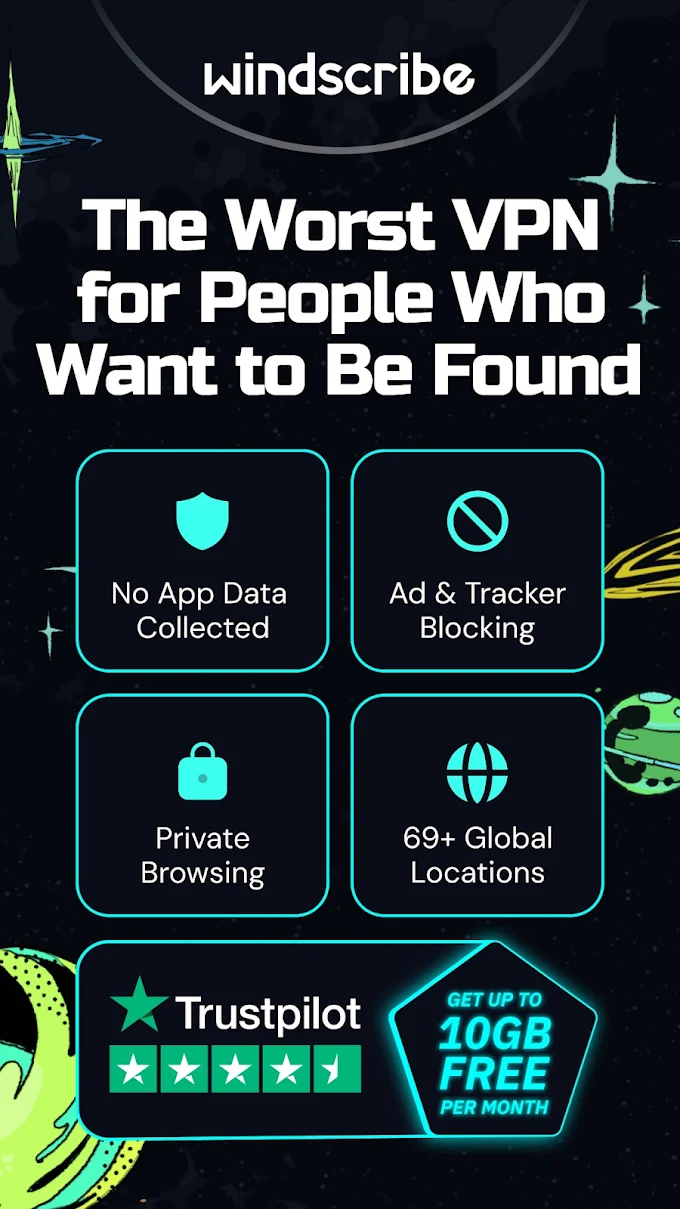
At the source check, Windscribe’s free-plan page lists 2 GB per month without an email address and 10 GB after confirming an email. Check the allowance, reset date and available locations in your own account before planning around a particular amount.
This is a recurring data cap, not a guarantee that every activity will fit within the month. Large app downloads, video playback and background updates can use the allowance much faster than a short browsing session. Your mobile operator’s data charge is a separate limit from the VPN account’s allowance.
For example, someone using the VPN briefly on occasional public Wi-Fi may have different needs from someone streaming for hours each day. Begin with the tasks you actually expect to do. Do not purchase an upgrade because a third-party page promises a fixed speed or access to a particular service.
If you choose to add an email address, use an inbox you control and complete the confirmation step. Keep the account’s password and recovery arrangements in mind. A quota shown in an old screenshot is less useful than the current information in your own account.
Set up the first connection
Install the genuine app and create or sign in to your account. Choose an available location and use the app’s connection control. Review the Android VPN permission prompt so you understand which app is receiving authority to establish the tunnel.
Once connected, check the displayed status and load an ordinary HTTPS website. This confirms basic connectivity for that test. It is not a full privacy audit and does not prove that every application on the device follows the route you expect.
Try one short session before changing advanced settings. Note which network you used and whether the behaviour differs on mobile data and Wi-Fi. If something fails, those details help separate an account issue from a network-specific connection problem.
Use a unique account password and keep it out of public screenshots. If you report an error, share the message and relevant device details instead of posting account credentials or an unreviewed log containing private information.
Review Android always-on and split-tunneling settings
Windscribe’s Android guide discusses Always-on VPN and Android’s Block connections without VPN control. Understand the behaviour before enabling it, particularly if you also want some applications to bypass the VPN.
On Android, the documented split-tunneling options operate by app. The guide warns that excluded apps may not connect as expected when Android is blocking connections outside the VPN. Read the current mode descriptions instead of assuming that every combination of settings is compatible.
Use an exclusion only when you have a clear reason. An excluded app follows a different connection route and should not be assumed to receive the same VPN protection. Keep a small, understandable list and test the actual task you want to perform.
For a printer or another local-network device, check local access separately from internet browsing. A website loading correctly does not prove that the phone can still reach a device on the same Wi-Fi network.
Treat blocking features as one layer
Windscribe documents a domain-blocking feature called R.O.B.E.R.T., with options that depend on the account plan. Read the current Android feature guidance before assuming that a particular list or custom rule is included.
A domain blocker is not the same as scanning an APK, checking every file for malware or removing advertisements already embedded in a recording. Keep software updates, careful downloading and ordinary account security in place.
If a useful site stops working after changing a blocking option, test that option deliberately rather than disabling every protection at once. Record the setting you changed and restore it if the change does not identify the cause. A structured check is easier to reverse than a collection of undocumented tweaks.
Read privacy claims precisely
Windscribe’s privacy policy describes the information it keeps for running the service, including bandwidth totals and a last-activity timestamp. It also describes categories of browsing information it says it does not retain. A no-activity-logs claim should not be rewritten as a claim that the provider stores literally no account-related information.
A VPN also cannot hide information you deliberately give to a website while signed in. Cookies, account logins and messages to another person remain separate parts of your privacy choices. Use the service for a defined purpose and review the provider’s current policy before making a trust decision.
These are provider statements, not findings from an APKNIKO audit. We have not independently tested the service’s logging practices or every Android configuration.
Fix connection and allowance problems
If connecting fails, check account access, remaining allowance and the underlying network first. Read the exact error instead of repeatedly installing a different APK. If your email confirmation did not complete, investigate that before assuming the larger allowance was applied.
If only one site fails, test another ordinary site and note the difference. A service blocking VPN traffic is different from the entire phone losing connectivity. No VPN provider can guarantee that every third-party website will accept its connection.
For a problem after an update, review relevant settings and consult the provider’s support instructions. Before uninstalling or clearing app data, confirm you can sign back in. Our APK update guide explains the general precautions.
Frequently asked questions
Is Windscribe APK completely unlimited for free?
No. The documented free plan has a monthly data allowance. Check the current quota and reset date in your account.
Do I need to provide an email address?
Windscribe documents account creation without one, with a smaller free allowance. Confirming an email changes the advertised allowance and can support account recovery.
Does the Android app behave like a browser extension?
They are different products and connection scopes. Use the Android app’s current instructions when configuring a VPN on your phone.
Can a VPN verify whether an APK is genuine?
No. Check the publisher, download source and permissions separately. A connected VPN does not make an unofficial installer trustworthy.
Is the free plan enough for your use?
Start with a short, ordinary session and inspect actual usage in your account. If the allowance fits, there is no need to assume that paid features are required. For another provider with a different free-plan approach, read our Proton VPN Android guide.
Sources checked: 15 October 2026. Linked Windscribe download, free-plan, Android setup and privacy pages support the service details. Icon and screenshot come from the publisher’s Google Play listing; current screens and allowances can change.