Description
ReadEra Android guide: A useful reading library starts with files you can find and a display you can read comfortably. ReadEra brings several document formats into one Android reader, but a growing Downloads folder can still become confusing. This ReadEra Android guide explains how to organize a small library, adjust EPUB and PDF viewing, keep useful notes and prepare before moving to another phone.
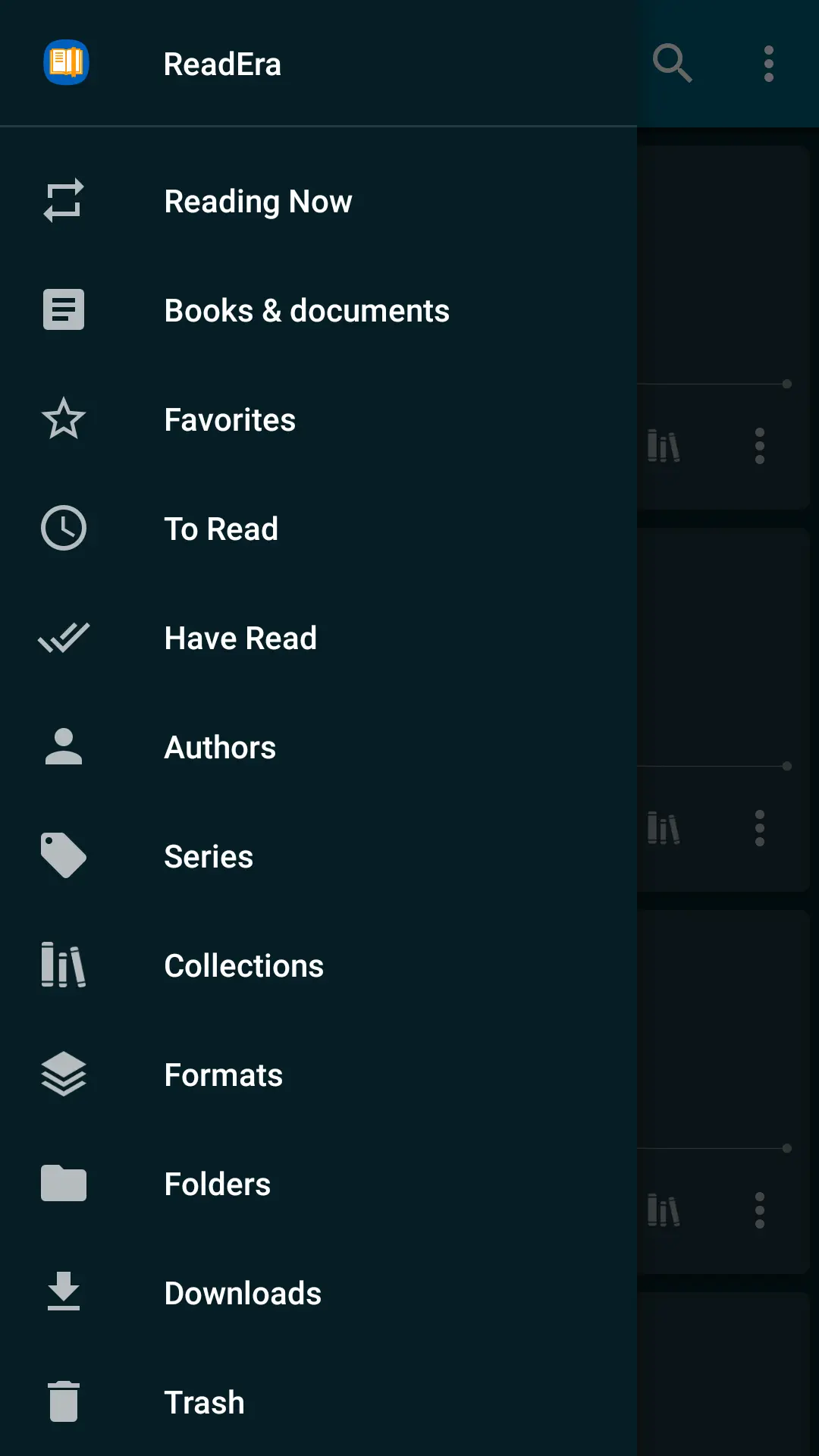
What ReadEra reads on Android
The official Google Play listing describes an offline reader for formats including EPUB, PDF, MOBI, AZW3, FB2, DOCX and TXT. The free edition is presented as ad-free and does not require registration for ordinary reading. Check current compatibility and supported formats in that listing before installing.
A reader opening a format does not mean every book sold under that format will automatically work. Store-specific protection, damaged files and unusual document structures can affect access or display. Use your own documents, authorized downloads or public-domain books, and follow the source’s legitimate reading options when a protected purchase needs its own app.
This guide explains a manageable workflow. It does not claim that every document has been personally tested or that a reading app includes free access to every published book.
Build a small library before importing everything
Begin with two or three clearly named files. Include an EPUB and a PDF if those are the formats you use most. Keep the source copies in a folder you recognize rather than scattering them through temporary messaging and download directories. Confirm that each file opens and that its title matches the content.
Use names that distinguish editions, languages or course versions. For example, a subject plus an edition year is more helpful than several files named final or new-final. Keep a note of the source for material you may need to download again. Avoid renaming files repeatedly during the first setup, because it makes troubleshooting missing items harder.
Once the small test works, add more material in groups. Open a sample from each group and check that the copy is complete. A library with ten verified books is more useful than hundreds of unidentified files you cannot locate when you need them.
ReadEra Android guide to EPUB comfort
The official ReadEra feature overview describes reading settings, collections, bookmarks and notes. For reflowable formats such as EPUB, try a comfortable font size and line spacing before beginning a long chapter. Change one control at a time so you can tell what improves readability.
Choose a display style that suits the room and your preference. A dark theme is not automatically the most comfortable choice in every environment. Compare a short passage in two available color modes and keep the one that lets you read without repeatedly adjusting the screen. Set brightness deliberately rather than compensating for a tiny font with a brighter display.
After changing text size, expect line and page breaks to move. For a study note, record a chapter or section heading in addition to the displayed page number. That makes the reference easier to find when a different device or reading setting produces a different layout.
Treat PDFs as page layouts
PDFs often preserve a fixed page rather than rearranging text like an EPUB. ReadEra’s listing describes zoom, margin cropping and a single-column option for certain scanned double-page layouts. Test these controls on a few pages before applying a setup to a whole textbook. Check diagrams, footnotes and page edges after changing the view.
For a dense page, rotate the phone if that makes the text larger without constant horizontal movement. Then compare whether cropping excess margins improves the view. Keep the original document unchanged while experimenting. A layout that works for a plain text page may hide labels on the next page’s diagram.
If text cannot be selected in a scanned file, the page may be an image rather than searchable text. Try searching for an obvious word to understand the document’s behavior. Use a legitimate text-based edition when available instead of assuming a new reader installation will add missing text recognition.
Organize collections around actual reading
Create a few collections with clear purposes, such as Current Reading, Course References or Finished Books. A collection should help you answer a real question: what am I reading now, what supports this project, or what should I return to later? Avoid creating so many categories that finding the right shelf becomes another task.
Separate your source-folder organization from the reader’s reading lists. A book appearing in a collection is not proof of a second independent file copy. Before cleaning storage, identify where the actual document lives. If two entries appear identical, compare their editions and annotations before deciding that one can be removed.
For another kind of offline reference collection, APKNIKO’s Kiwix Android guide explains ZIM-based reference libraries. Kiwix and ReadEra handle different content workflows, so choose the appropriate tool for a reference archive or an individual document.
Make bookmarks and notes useful later
Use a bookmark for a place you need to return to, then add a short note explaining why it matters. Highlighting every paragraph makes review difficult. Choose a key idea and write a sentence in your own words about its connection to your task.
For a study session, read a short section before deciding what to save. Then note the claim, its supporting example and one question you still have. Keep the book title and chapter with any notes you move elsewhere. That is more useful than a folder of isolated quotations with no source context.
Check the app’s current sharing or export controls before relying on annotations as your only research record. Test with a harmless note first and inspect what is included. Keep an independent copy of essential study notes in a format you can access outside the reader.
Understand free reading and Premium syncing
The official Premium page lists Google Drive synchronization for books, reading progress, bookmarks and quotes among its paid features. Do not assume the free edition automatically provides that same cross-device service. Review the edition and current purchase terms shown to you before choosing it.
Regardless of edition, keep the original document files backed up separately. Copying a book to a new phone and transferring its reading position or annotations are different tasks. Confirm both on the destination device while the old installation remains available. A visible book cover alone does not prove every note has moved.
Our Android update guide without data loss explains why this verification should happen before clearing storage or reinstalling. Use your current app’s documented backup or synchronization options and keep a second copy of material that matters.
Official installation and simple fixes
Install from the verified listing linked above. APKNIKO’s APK download guide explains package files, and the APK safety guide covers unfamiliar sources. The free reader does not need a modified “Premium unlocked” package to open its supported ordinary documents.
If a file is missing, locate it through Android’s file manager and try opening that exact copy. Check that the download completed, storage is accessible and the extension matches the expected document. Test another known-good file before reinstalling. If only one book fails, investigate that file and its source first.
Frequently Asked Questions
Does ReadEra work offline?
The official listing describes offline reading of supported files stored on the device.
Are EPUB and PDF settings identical?
No. Reflowable text and fixed page layouts behave differently. Test font controls for EPUB and zoom or margin options for PDF.
Does the free app include every book for free?
No. A free reader is software for opening documents; obtain books from authorized sources.
Is Google Drive syncing a free-edition promise?
The official website lists it among Premium features. Check the edition’s current feature description.
What should I check before replacing my phone?
Verify the actual book files, reading position and important notes on the destination device before removing the original installation.
Keep the library easy to return to
Start with a few verified files, choose comfortable settings and organize around what you actually read. Save selective notes with useful context and confirm backups before moving devices. A smaller, understandable library makes the next reading session easier to begin.