Luanti APK for Android: Official Download, Games & Mods Guide
Description
Luanti APK for Android gives you access to an open-source platform for voxel games, building and multiplayer worlds. Formerly called Minetest, Luanti is an engine and client rather than one fixed game. After installing it, you normally choose a game or server, then use the content and rules that belong to that choice.
This distinction makes the first setup easier to understand. The guide below uses official Luanti information checked on 15 October 2026. It does not claim device-specific performance testing or compatibility with every community mod.
What is Luanti, and why was it called Minetest?
The Luanti project website describes an open-source voxel game platform available for Android and desktop systems. The Minetest name still appears in older guides and in the Android package net.minetest.minetest. That package name alone is not evidence that the app is an outdated clone.
Luanti provides the engine. Individual games decide much of the actual experience: crafting rules, survival mechanics, building tools or puzzles. A texture pack changes appearance, while a mod can add or alter behaviour in a compatible game. These are related but different kinds of content.
Luanti is a separate project from Minecraft. Do not assume that a Minecraft world, mod or account can simply be opened inside it. Choose content written for Luanti and read the requirements of that particular package.
Luanti APK download for Android
Use the button to open the genuine Luanti listing on Google Play. APKNIKO does not modify the installer or bundle a collection of unverified mods into it.
The official Luanti download page provides the project’s current routes, including Android options. If one store is unavailable in your region, follow the alternatives linked there instead of using a sponsored mirror with a similar name.
Check compatibility on the current listing. Also allow room for downloaded games, textures and worlds; the installer is only part of the eventual storage use. For package-source checks, see our APK download guide and APK safety guide.
Install a game before creating your first world
The official player documentation outlines the basic sequence: obtain the client, install a game, create a world and play. If you only see menus after installation, that does not necessarily mean something failed. You may still need to choose the content you want to run.
Start with one game that clearly explains its purpose and supported engine versions. Read its description, dependencies and controls. Avoid installing several overlapping content packages before you have seen a normal world run.
Give the first world a clear name such as First Build Test. Keep it separate from any world you intend to develop over weeks or months. This creates a safe place to learn controls, try settings and see how the game saves progress.
Before exploring far, practise moving, looking around, interacting with a block and returning to the menu. Save and reopen the world. Confirming that basic loop is more useful than immediately importing a complicated collection of mods.
Use ContentDB to choose compatible additions
ContentDB is the project’s catalogue for games, mods and texture packs. The client can use it to discover and install content. Read each package page rather than treating the catalogue as one universal set of interchangeable add-ons.
A mod may depend on a particular game or on another mod. A texture pack may cover some content and leave other blocks unchanged. An install that completes successfully does not by itself prove that every combination will behave as you expect.
Add one package at a time to the test world. Record what changed and whether an error appears. If the game stops loading, you have a small set of recent changes to investigate instead of dozens of possible causes.
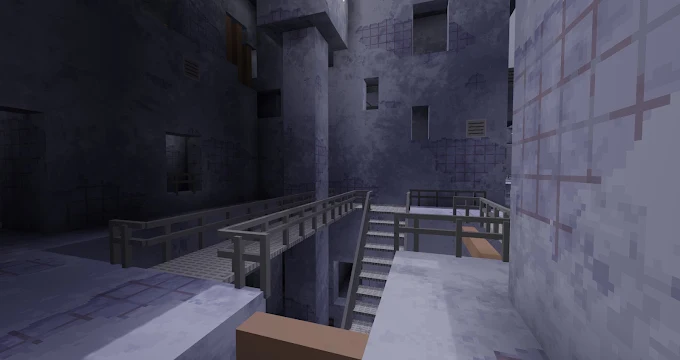
For example, a building-focused player can begin with the game’s existing tools and only add a decorative package after learning the normal blocks. Someone trying survival content should first understand its default rules. Extra content is useful when it solves a real limitation you have noticed.
Adjust Android controls and graphics gradually
Touch controls need a little practice, especially if you previously played a voxel game with a keyboard and mouse. Spend a few minutes in an uncomplicated area. Learn movement, camera control and the action buttons before entering a demanding multiplayer server.
Change one setting at a time. If turning feels awkward, adjust the relevant sensitivity option and test again. If buttons overlap your view, inspect the controls available in the installed version. Menu labels and available settings can change, so use current project instructions when necessary.
For graphics, begin with a modest view distance and ordinary textures. If the phone stays comfortable and the world responds well, increase one option gradually. A dense world with many active mods may behave differently from a simple new world even on the same phone.
No fixed frame rate or universal RAM requirement is promised here. World complexity, engine version, screen resolution and device temperature all matter. Our mobile performance guide explains why a single benchmark number cannot describe every session.
Understand local play and multiplayer
A local single-player world is different from joining a remote server. After the required game content is available, test your intended local setup without a connection if offline play matters to you. Initial downloads and online servers still need network access.
Servers can have their own rules, accounts and content. Read those rules before joining, and use a unique password where registration is required. Avoid entering a password you already use for email or another important service.
Keep public chat and uploaded information appropriate for the community. An open-source client does not mean that every server is operated by the Luanti project. The choice of server is a separate trust decision from where you downloaded the app.
Protect worlds before updates or mod changes
A world that has taken hours to build deserves a backup before you change its engine or content. The Luanti player documentation is the starting point. Its Android-specific guide, checked on 24 October 2026, documents scoped app data under /storage/emulated/0/Android/data/net.minetest.minetest/files/Minetest. An older tutorial pointing only to the public /Minetest/ folder may describe a different storage layout. The documented file-manager workaround is Android-version-dependent, while the ADB route needs a computer. Read the requirements for your device before copying files; a path written in a guide does not guarantee that your file manager can open or restore it. Keep the original installation until you have a separate usable copy of the world.
Keep a copy outside the same app storage you might erase. Confirm that the backup includes the world data and any other files the chosen method requires. If you cannot explain how you would restore it, practise with a disposable world first.
When updating a game or mod, read its release notes for compatibility or migration warnings. Reverting an APK does not necessarily undo changes made to a world. Our APK update guide covers general precautions, but world-format changes need project-specific guidance.
Fix a missing game or a world that will not load
If no playable world is available, check that you installed a game rather than only a texture pack. If a particular world fails, note its game and enabled mods before changing anything. Try a new test world with the base game to narrow the problem.
For a server connection failure, check whether ordinary internet access works and whether the server is available. A server version or content problem is different from an Android installer error. Include the exact error message when asking the project community for help.
Frequently asked questions
Is Luanti APK the same as a Minecraft APK?
No. Luanti is a separate open-source project with its own games and content ecosystem. Similar-looking blocks do not make the applications interchangeable.
Why do I need to select a game?
Luanti provides the engine and client. A selected game supplies the rules and content for your world.
Can every mod work with every game?
No. Check the package’s dependencies, supported game and engine requirements. Test additions individually before using them in a valuable world.
Can I play without internet?
Local play and online servers have different requirements. Download the needed content first and test the exact single-player setup before relying on it offline.
A useful first session
Install the genuine client, choose one suitable game and create a small test world. Learn controls and saving before adding mods or moving a long-running build. For another game with a different creative strategy focus, read our Mindustry Android guide.
Sources checked: 15 October 2026. Linked Luanti project pages support the engine, game and ContentDB details. Icon and gameplay screenshot come from the project’s Google Play listing.