CapCut APK for Android 2026 – Official Download, Features & How to Use
Description
CapCut is one of the most popular Android video editors for short videos, reels, tutorials, and social media clips. This CapCut APK for Android 2026 guide focuses on the official app, safe installation, core editing tools, export options, and simple setup steps. The current Google Play listing describes features such as trimming, speed control, keyframes, chroma key, stabilization, auto captions, text-to-speech, motion tracking, background removal, and high-resolution export.
Official Android download via Google Play. No countdown or extra download page.
What Is CapCut APK for Android?
CapCut is an all-in-one video editor for Android. It is designed for beginners who want quick edits and for more experienced users who need timeline tools, keyframes, effects, captions, and export controls. On Android, the app can be installed from its official Google Play page. If you use an APK file from another source, check the file carefully before installing it.
If you are new to APK files, read our Complete Guide to APK Downloads. It explains what an APK is, when you may need one, and how to avoid common download mistakes.
CapCut Features You Can Use in 2026
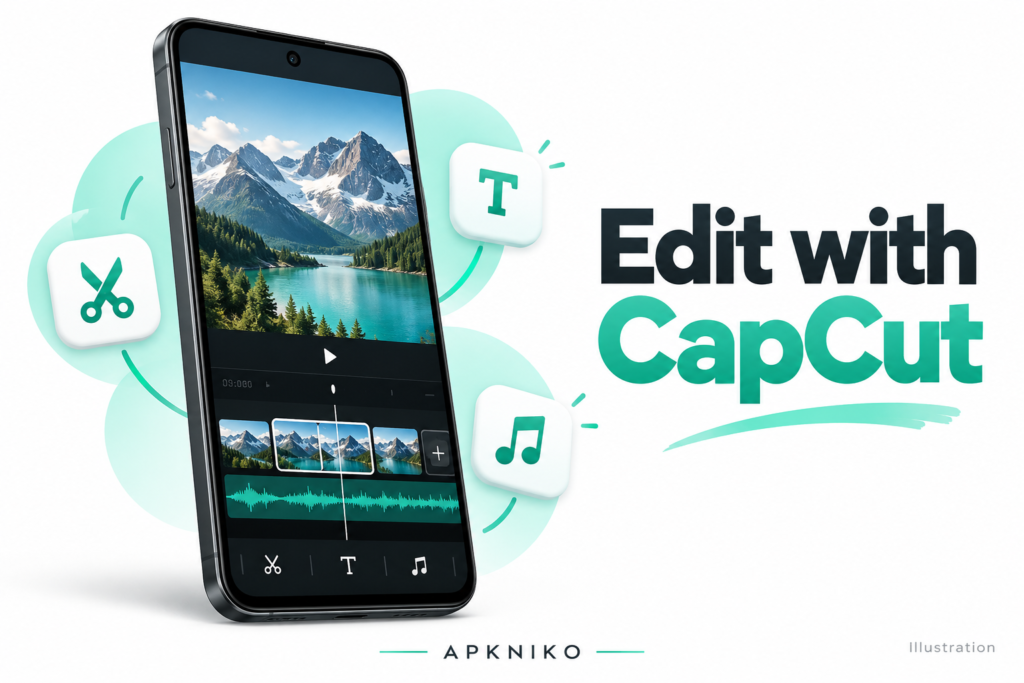
CapCut combines basic and advanced editing tools in one Android app. You can trim clips, split or merge videos, change playback speed, add transitions, freeze a frame, and arrange clips on a multi-track timeline. These tools make it useful for TikTok-style edits, YouTube Shorts, Instagram Reels, school projects, product videos, and simple tutorials.
1. Keyframe Animation
Keyframes help you animate position, scale, rotation, and other settings over time. This gives you more control than a single static effect. It is useful for zooms, smooth movement, and animated text or overlays.
2. Slow Motion and Speed Curves
CapCut includes speed controls and curve tools for fast or slow sections inside a clip. The Play Store listing also mentions optical-flow based smooth slow motion. Results depend on the source video and the phone you use.
3. Chroma Key and Background Removal
Chroma key can remove a selected color, while background removal can separate a subject from the background automatically. These tools are useful for reaction videos, product clips, gaming edits, and short-form content.
4. Auto Captions and Text-to-Speech
Auto captions can convert speech into subtitles. Text-to-speech can turn written text into spoken audio. These tools can save time when creating videos for social media, especially when you publish content frequently.
5. Filters, Effects, Text, and Stickers
You can add filters, effects, fonts, text styles, stickers, transitions, and other visual elements. Use them carefully. Too many effects can make a video difficult to watch and can increase editing time.
How to Download CapCut APK Safely
The safest option is to install CapCut from Google Play using the download button above. That route reduces the chance of getting a modified or repackaged file. If Google Play is not available on your device and you are using an APK, use a trusted source and verify the package before installation.
Before installing any external APK, follow the checks in our Complete APK Safety Guide. You can also read How to Check an APK Before Installing for a simple pre-install checklist.
How to Install CapCut APK on Android
If you download an APK file instead of using Google Play, Android may ask you to allow installation from the app that opened the file, such as your browser or file manager. Only enable this permission for the source you are using, install the file, and then turn the permission off again if you do not need it.
- Download the CapCut APK from a source you trust.
- Open the downloaded file from your browser or file manager.
- If Android asks for permission, allow installs for that specific source.
- Review the installation screen and tap Install.
- Open CapCut after installation and allow only the permissions you actually need.
For a full walkthrough, see How to Install APK Files. If Android blocks the file, our Play Protect Blocked an APK? What to Do Safely guide explains the safer next steps.
How to Edit a Video in CapCut
Start by creating a new project and selecting the video clips or photos you want to use. Add them to the timeline, then trim unwanted parts. After that, add text, transitions, music, effects, or captions. Keep the timeline organized so changes are easy to manage.
For social media videos, it is usually better to keep the first few seconds clear and interesting. Add captions when speech matters. Use transitions only when they improve the flow. Preview the full video before export to check text placement, audio levels, and cuts.
CapCut Export Settings
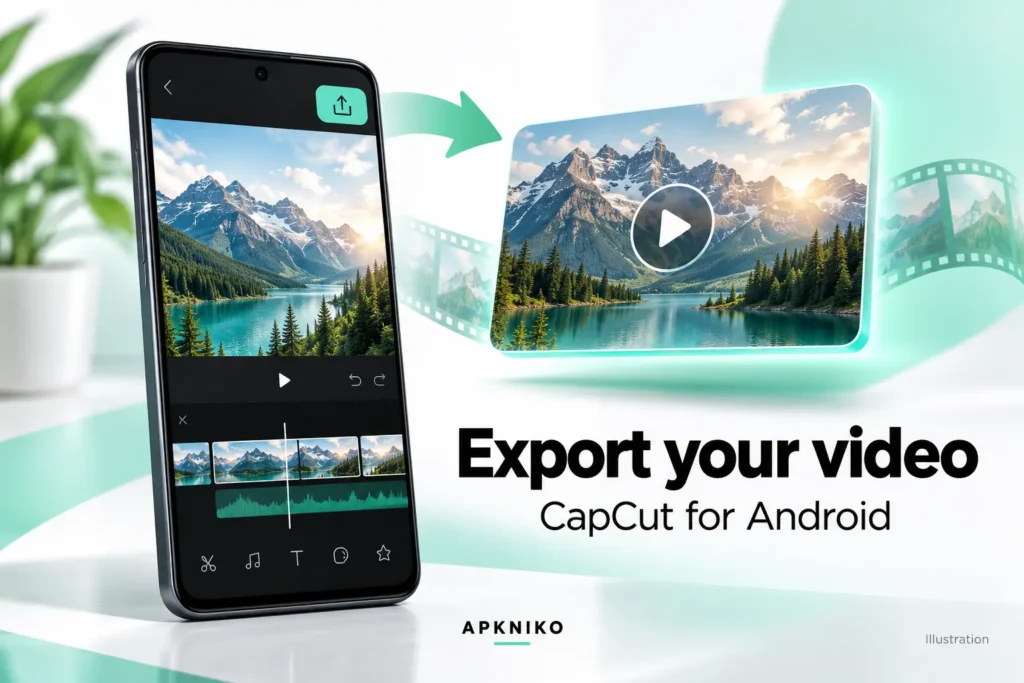
CapCut offers adjustable export settings. The Google Play listing says the app supports custom resolution and can export up to 4K at 60 fps on supported devices and projects. A higher resolution or frame rate can produce a larger file and may take longer to export.
For most short-form content, choose settings that match the original footage and the platform where you will publish. If your phone becomes hot or the export is slow, try a lower resolution, close unused apps, and make sure enough storage is available.
CapCut Permissions and Privacy
Video editors may request access to photos, videos, audio, the camera, or the microphone because those permissions are needed for editing and recording features. Review each permission and allow only what you plan to use. Android settings let you change permissions later.
Avoid unofficial “Pro unlocked,” cracked, or modified builds that promise paid features for free. Modified APKs can be changed by third parties, and you cannot assume they match the official app. Use official stores or a source you can verify.
CapCut APK Not Installing? Try These Checks
- Confirm that the APK finished downloading completely.
- Make sure your Android version and device meet the app requirements.
- Check that there is enough free storage.
- Keep the current CapCut installation while you investigate a signing conflict. Back up or export important projects first, and confirm that the backup is usable. Uninstalling or clearing app data can remove local drafts. Verify the publisher and update source before considering removal; do not delete the working app simply to bypass a signature error.
- Re-download the file if Android reports a package parsing error.
- Check Play Protect warnings before forcing an install.
For broader troubleshooting, see APK Installation Failed on Android? 12 Easy Fixes 2026.
Is CapCut Free?
The Android listing shows CapCut as free to install with in-app purchases. Some tools or assets may require payment, a subscription, an account, or an internet connection. Feature availability can also vary by region, app version, and device.
CapCut APK FAQs
Is CapCut APK safe for Android?
The official CapCut app from Google Play is the safest normal install route. Third-party APKs should be checked before installation because they may be repackaged or modified.
Can CapCut export 4K video?
CapCut’s Google Play listing states that the app supports up to 4K 60 fps export. Actual options can depend on the device, source footage, project settings, and app version.
Does CapCut have auto captions?
Yes. The current Android listing includes auto captions as an intelligent feature for generating subtitles from speech.
Can I install CapCut without Google Play?
You can install an APK manually on Android, but only use a file from a source you trust. Verify the file and follow Android’s installation warnings.
Why is CapCut APK not installing?
Common causes include an incomplete download, low storage, incompatible Android versions, signature conflicts, or a damaged APK file.
Final Words
If you also use AI tools for scripts, captions, or content planning, see our Claude AI Android App 2026 guide.
CapCut APK for Android 2026 remains a strong option for mobile video editing because it combines quick basic edits with advanced tools such as keyframes, captions, background removal, speed controls, effects, and flexible export settings. For the safest setup, use the official Android listing. If you install an APK manually, verify the file first and keep Android security checks enabled.