Fossify Voice Recorder: Save, Find and Back Up Audio
1.7.3 Beta
Android 8.0+ for the 1.7.3 F-Droid build

Description
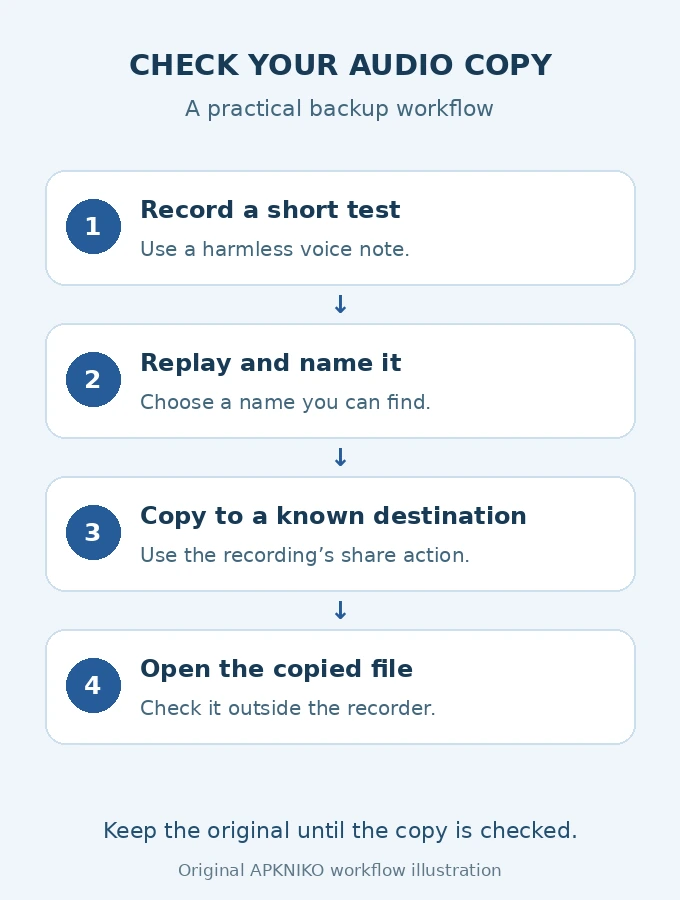
Fossify Voice Recorder can record audio offline, but a recording listed inside the app is only the first thing to check. Before you rely on an important voice note, play it back, give it a useful name and open a separate copy outside the recorder. That simple check helps you distinguish a saved recording from a backup you can actually use.
This guide covers finding a recording, sharing a copy and preparing for a phone change. It focuses on ordinary voice notes and personal recordings.
Get the right app before following the steps
Fossify’s official Voice Recorder page links to its distribution channels. Check the publisher and package name, org.fossify.voicerecorder. The project currently labels this app Beta. At our source check on 16 October 2026, the project listed release 1.7.3; F-Droid’s entry for that build requires Android 8.0 or newer.
Use the release offered for your phone through your chosen trusted channel. If you already have a working installation, keep using its update channel rather than assuming every file with the same app name is interchangeable.
Make one short test recording
- Open the recorder and allow microphone access when you intend to record.
- Record a harmless ten-second note, such as “recorder test, Friday morning.”
- Stop recording normally and look for the new item in the recording list.
- Play it from the beginning and check that your voice is audible.
- Rename it to something recognisable before making a copy.
For example, 2026-10-16-recorder-test is easier to identify than several similar default names. Keep the real file extension when renaming. The date is an organisational choice, not a requirement of the app.
Where do you find a saved recording?
Start in the recorder’s own list, where you can identify the item by name, time and duration. In the 1.7-series interface, long-press a recording to access its actions. The project’s changelog records the move away from a separate overflow menu on every item, so older instructions telling you to tap an item’s three-dot menu may not match your build.
If you need the file in another app, use the available sharing action to send a copy to a destination you recognise. If your build offers a recording-folder setting, inspect the selected destination there. Avoid assuming that one folder path applies to every Android version, installation and storage choice.
A file manager is useful once you know where you put the copy. Our Fossify File Manager guide explains how to approach local folders and storage access. Search for the name you deliberately gave the test recording instead of browsing unrelated system folders.
Turn a shared copy into a checked backup
Sharing is a transfer step. The useful question is whether the destination now contains an audio file you can open independently.
| What you have | What it tells you | Next check |
|---|---|---|
| The item plays inside the recorder | The app can currently play that recording. | Make a separate copy for anything important. |
| A copy appears in another folder on the same phone | You have another local copy. | Remember that losing the phone can affect both copies. |
| The copied file opens on a computer or another device | You have checked access outside the original app and phone. | Keep the original until you are satisfied with the copy. |
If you want to move an exported file to your own computer over a local network, see our LocalSend file-transfer guide. Confirm the receiving device and open the received audio. A filename in a transfer history is less useful than an actual playable file at the destination.
If recording or sharing does not work
No voice is audible
Check microphone permission and make another short recording while the app is open. Compare the result with your first test. For permission settings, use our Android app permissions guide. Change one relevant setting at a time so you can tell what affected the result.
The recording plays, but a copied file will not open
Keep the working original. Check the copied file’s name, extension, size and destination. Try sharing the same harmless test clip again before experimenting with your only important recording. Do not clear the recorder’s storage or uninstall it as a first troubleshooting step.
An action shown in an old tutorial is missing
Check the installed version and try the recording-list long-press controls. The F-Droid version history documents changes to selection and renaming. For an unresolved problem, give the maintainer your app version, Android version, installation source and repeatable steps. A private recording is not needed for a useful first bug report.
Does offline recording mean automatic backup?
No. Fossify’s privacy policy says the recorder does not request Android’s Internet permission and Fossify does not provide an account or cloud service for it. Sharing through another app or saving through a storage provider is a separate choice. Those apps and Android backup services have their own behaviour and policies.
Before replacing or resetting a phone, check important audio outside the recorder. A small routine works well: record, replay, name, copy and verify. Repeat it with one test file before relying on it for a longer recording.
Editorial note: Project information, privacy details and the distribution changelog were checked on 16 October 2026. The file-checking example is APKNIKO’s suggested workflow; this article does not claim a hands-on test on a particular Android handset. Illustrations are original explanatory diagrams, not app screenshots.