WordPress plugin
Product Filter for WooCommerce by WBW Pro
Product Filter for WooCommerce by WBW Pro lets shoppers narrow a WooCommerce catalog using the criteria that matter to them. Configure filters for price and price range, categories, tags, taxonomy, author, featured or sale status, stock status, ratings, text search, and product attributes.
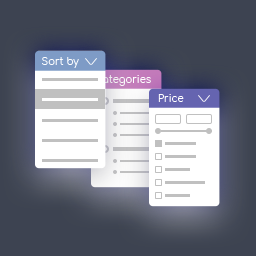
Product Filter for WooCommerce by WBW Pro lets shoppers narrow a WooCommerce catalog using the criteria that matter to them. Configure filters for price and price range, categories, tags, taxonomy, author, featured or sale status, stock status, ratings, text search, and product attributes.
Choose a show for each selection type
The Pro edition supports radio button lists and dropdowns for single selections, checkbox lists for multiple selections, and icons for attribute filters such as colour, size, and rating. Adjust filter presentation to suit the storefront. The filter is responsive across phones, tablets, desktops, and laptops.
Set when filtered results appear
AJAX live search can update matching products without reloading the page. Configure it to apply filters as shoppers choose settings or after they press the filter button. Product counts can be displayed and recalculated to display how many items match the selected filters.
Shoppers can sort products by popularity, rating, price, newness, name, random order, or the default order. Sorting can use ascending or descending order where available.
Configure and preview filters
Create and customize filters through the Elementor interface, where the WooCommerce Product Filter capabilities are available in the Elementor tab. Live Preview shows setting changes in the panel as you work. Add a filter to a page with a widget or shortcode; PHP code can also place it at a specific point in the page code.
Price filters include default, flat, big, modern, sharp, round, and square skins. Adjust the colour, currency code or symbol, symbol position, and input fields. Automatic price ranges use fixed step values, or you can set each step manually.
Set up and troubleshoot
Add the add-on to a WordPress website with WooCommerce, make filters, and place them on the relevant pages using a widget, shortcode, PHP code, or Elementor. Configure criteria, display formats, price settings, sorting, and AJAX behavior, then review the result with Live Preview.
If a problem occurs, first check that WordPress, the theme, and the add-on are updated. Then test with other extensions deactivated to help identify a conflict.