WordPress plugin
Social Share for WooCommerce PRO
Social Share for WooCommerce PRO gives shoppers ways to share products from your shop. They can select a displayed social platform or copy a product link to the clipboard. For variable products, enable links to specific variations; those links can also be shared through the pop-up modal.
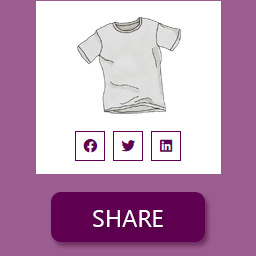
Sharing controls for WooCommerce products
Social Share for WooCommerce PRO gives shoppers ways to share products from your shop. They can select a displayed social platform or copy a product link to the clipboard. For variable products, enable links to specific variations; those links can also be shared through the pop-up modal.
Choose platforms and locations
Select the social icons to display and arrange them with drag and drop. On single product pages, place the icons with the product category name, after the title, or after the price. You can conceal them from these positions. PRO also includes floating icons on the left or right side of the browser window. When floating icons are enabled, you can hide icons in the other positions to prevent duplicates.
A share icon can also appear on shop and archive pages, so shoppers can share a product from its listing.
Set how shoppers see and open the settings
Choose whether each sharing item shows an icon, text, or both. The default label is Share On. A pop-up modal gives shoppers access to all available social icons while the main page can show the platforms you selected. Use the shortcode [psfw_basic_share] to place social icons elsewhere on a page, including in layouts built with Elementor, Divi, or Beaver Builder.
Adjust the appearance
Choose round or square icon shapes, then personalize icon colors, platform icon size, font size and weight, and hover styles. You can add tooltips and set their text and background colors.
Install and configure
- Download the ZIP file and sign in to the store’s administrator panel.
- Go to Plugins, choose Add New, then choose Upload.
- Choose the ZIP file and install it.
- Configure the platforms, icon order, display locations, and appearance. Enable copy-to-clipboard, variation links, or the pop-up options as needed, and use the shortcode when you want to place the icons elsewhere on a page.