WordPress plugin
Inline Related Posts Pro: Choose Where Related Links Appear
Inline Related Posts Pro includes related-post boxes inside WordPress content. Automatic insertion can add multiple boxes across posts, with line-break detection and HTML tag handling to help avoid interrupting paragraphs or headings. Review a few representative posts after setup to check how placement works with different layouts.
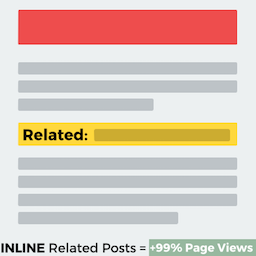
Place recommendations in the article
Inline Related Posts Pro includes related-post boxes inside WordPress content. Automatic insertion can add multiple boxes across posts, with line-break detection and HTML tag handling to help avoid interrupting paragraphs or headings. Review a few representative posts after setup to check how placement works with different layouts.
Because these boxes appear within the article, they can be used alongside another related-post add-on that places recommendations at the end of a post.
Choose placement and eligible posts
Add the [irp] shortcode where you want a box to appear. Its settings let you narrow the recommendations to selected posts, categories, or tags:
[irp]places a related-post box at the shortcode position.[irp posts="183,179,191,195"]shows a box with a link to a random post from the listed posts.[irp cats="3"]targets posts in the selected category. Use comma-separated values for multiple categories.[irp tags="18"]targets posts with the selected tag. Use comma-separated values for multiple tags.
Adjust the box style
The plugin offers style combinations using themes, colors, and hover treatments. The Pro edition includes additional styles and capabilities, giving you more presentation options for inline recommendations.
Configure and check placement
Install and activate the plugin in WordPress, then configure placement and presentation options. Choose automatic insertion for posts or add shortcodes to selected content.