WordPress plugin
Food Menu Pro for Restaurant Menus and Online Ordering
Food Menu Pro extends Food Menu for restaurants, cafés, cloud kitchens, fast-food outlets, catering services, and other food businesses. Use it to present dishes, configure menu settings, and support restaurant workflows on a WordPress site.

Food Menu Pro extends Food Menu for restaurants, cafés, cloud kitchens, fast-food outlets, catering services, and other food businesses. Use it to present dishes, configure menu settings, and support restaurant workflows on a WordPress site.
Choose a menu source for show or ordering
The Food Menu post type shows entry names, images, descriptions, and prices without WooCommerce. This mode is for showing a menu and does not accept online orders. To take orders through your website, select WooCommerce as the data source. WooCommerce supplies the cart, checkout, and payment flow. Food Menu also works with the WooCommerce mini cart and block-based Pickup/Delivery and Tip blocks.
The base Food Menu plugin includes a standard table reservation system, tips and gratuity, scheduled special-menu popups, and product discounts. Food Menu Pro includes advanced controls, including an interactive visual reservation floor plan where guests can choose a specific table and seat.
Present dishes and configure item details
Pro adds more than 20 layouts, including additional grid, slider, and filter variations, category displays, and WooCommerce styles. Single-page and multi-page popups can display item details. AJAX pagination supports numbered pages, load more, and auto-scroll. The Isotope Filter layout also uses AJAX pagination.
Set different prices for sizes such as small, medium, and large, and enter regular and sale prices for an item. Add ingredients and nutrition details with units using drag and drop. Customers can review and rate menu entries. Product add-ons let customers select extras such as toppings, sides, or special requests. Percentage discounts can apply to selected menus or categories, or to the cart.
Configure fulfillment and restaurant operations
Pro lets you set delivery and pickup order types by food location, with weekly schedules and holiday options. For dine-in, QR Code Table Ordering lets guests scan a code at their table, view the menu, and place an order linked to that table. A minimal checkout is available for QR orders.
- Schedule individual products to appear or disappear, and create custom WooCommerce order statuses that can trigger email, SMS, and WhatsApp notifications.
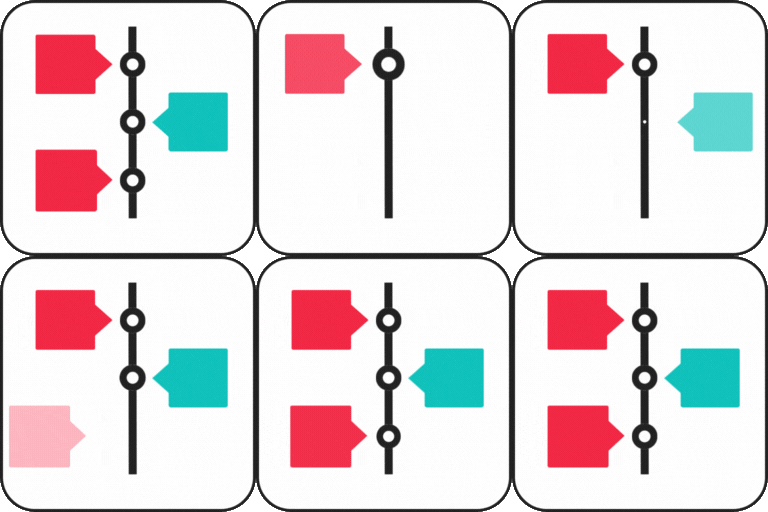
- View order status changes in a timeline, or let customers check progress on a public tracking page using their order ID and email.
- Show order bumps in the mini cart, build a configurable multi-step checkout, and add select or text fields to checkout.
- Print order confirmations and kitchen, packing, or delivery-driver slips. Manage orders and inventory through the front-end dashboard.
- Track stock and wastage, create inventory reports, and review activity logs. The kitchen monitor shows active orders with audio alerts and quick status controls; the role manager sets access to orders, inventory, and the monitor.
Publish menus with WordPress utilities
Create unlimited shortcodes with a four-step generator for layout, filtering, field selection, and styling. Food Menu includes a dedicated Gutenberg block, Elementor widgets, and WPBakery support through shortcodes. Styling controls cover colors, typography, and images. Translation-ready POT documents support Loco Translate and WPML.
Set up a menu
- Install and activate Food Menu Pro, then add food items in Food Menu.
- In the WordPress admin, open Food Menu > Shortcode Generator and choose Add Post. On the Layout tab, select a layout and style, then set pagination and image options.
- Open Filtering and choose Food Menu for a standalone display or WooCommerce for online ordering.
- In Field Selection, choose the fields to show. In Styling, set colors for the menu title, item price, and other components.
- Publish the shortcode and place it on a page or post. Configure delivery, pickup, reservations, QR ordering, and operational tools to match your restaurant's process.