WordPress plugin
Timeline Block Pro for Gutenberg Timelines
Timeline Block Pro is a paid extension for Timeline Block for Gutenberg. It includes layout and presentation options for organizing company histories, product roadmaps, process steps, tutorials, programs, appointments, achievements, personal stories, and other event sequences.
Build visual sequences in the WordPress Block Editor
Timeline Block Pro is a paid extension for Timeline Block for Gutenberg. It includes layout and presentation options for organizing company histories, product roadmaps, process steps, tutorials, programs, appointments, achievements, personal stories, and other event sequences.
A timeline story is one entry in the sequence, such as a milestone or process step. To begin, search for “Timeline Block” in the Gutenberg editor’s “Add Block” section, add it to a page or post, and arrange the content into stories. Pro supports vertical layouts and adds two horizontal options.
Horizontal layouts for left-to-right sequences
Choose Horizontal Default Design or Horizontal Simple Design when a left-to-right presentation suits the content. These layouts can present product development stages, company milestones, project phases, or event programs. The vertical format remains available for sequences that fit that direction.
Multiple timelines for separate subjects
Create and show multiple timelines on one site, then categorize them by various layouts. For example, a site can present company history separately from product updates, tutorials, appointments, or personal achievements.
Story media and links for added context
Timeline stories can include pictures, slideshows, and videos, including YouTube videos. A “read more” link can lead to additional information or a custom URL, giving readers a path to extended content.
Markers, styling, and navigation controls
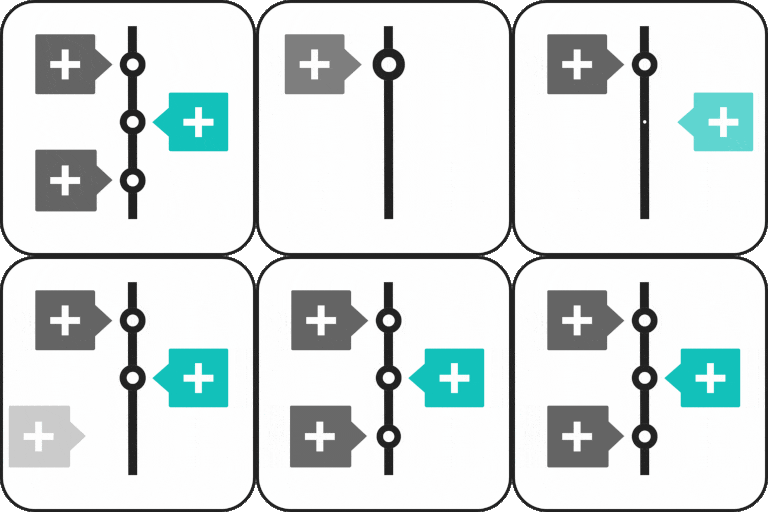
Choose a dot, icon, image, or text as a timeline marker to identify a story’s subject, category, date, or short label. Pro also includes controls for icon, arrow, and label placement.
- Choose from more than 15 animation effects.
- Enable center-line filling for vertical layouts.
- Set connectors to an arrow, a line, or none.
- Use scrolling navigation to access stories for specific years.
Setup and editor requirements
- Install and activate the Timeline Block plugin and its Pro edition in WordPress.
- Open the Gutenberg editor for the page or post where the timeline will appear.
- Select “Add Block” and search for “Timeline Block.”
- Add timeline stories, labels, media, icons, and links.
- Choose a vertical or Pro horizontal styling, then adjust the available presentation settings.
- Publish or update the page to display the timeline.
Timeline Block is designed for the Gutenberg editor. The supplied product information states that it is not intended for non-Gutenberg sites or other page builders.