WordPress plugin
Loading Page with Loading Screen Premium: Image-Based Progress
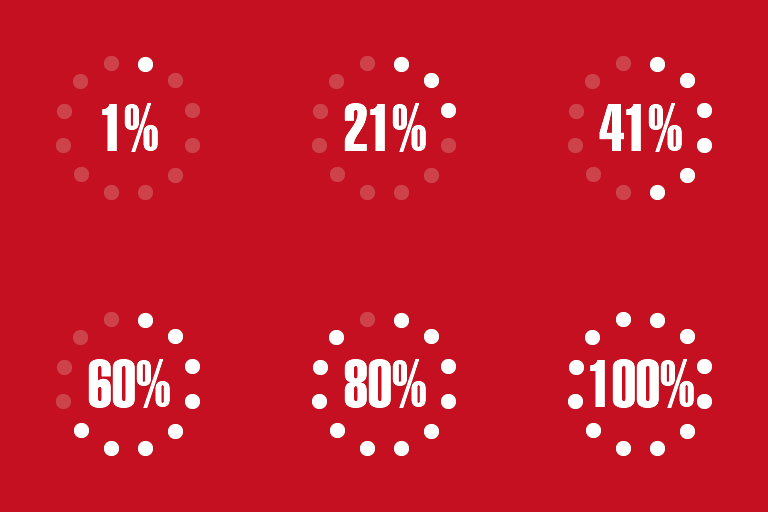
Loading Page with Loading Screen Premium preloads page images and displays a screen with a loading percentage. The percentage is calculated from the images, so it reports image-loading progress rather than the status of every page resource. The screen disappears when loading finishes, and Premium includes animation choices for revealing page content.
Show picture-loading progress
Loading Page with Loading Screen Premium preloads page images and displays a screen with a loading percentage. The percentage is calculated from the images, so it reports image-loading progress rather than the status of every page resource. The screen disappears when loading finishes, and Premium includes animation choices for revealing page content.
Choose where the screen appears
Display the screen on the homepage, across all pages, or on selected pages and posts. You can target specific pages with IDs or URL rules, including partial URLs and wildcards, and exclude pages or posts by ID. Choose desktop, mobile, or both, and set the screen to appear once per session.
Set the screen style and appearance
Available styles include bar, logo, and text screens, with additional choices in Premium. A text screen can display the site title or another short text; the logo screen can use a selected image. Show or hide the percentage, choose foreground and background colors, or use a background image that is tiled, centered, or displayed fullscreen. An additional-seconds setting can keep the screen visible briefly after loading completes.
You can also add an ad or another block of code to the loading screen. Some screen styles require the canvas object; the settings show a notice when a selected style has a special requirement.
Lazy loading and image placeholders
Premium lazy loading delays images outside the user’s current viewing area until they are needed. This can reduce image downloads and bandwidth use when users do not scroll to those images. Choose a placeholder image to display while the original image is delayed; a lightweight image is recommended.
If another gallery or image plugin also lazy-loads images, the settings include an exclusion option for image classes or attributes. This lets you exclude matching image tags from this add-on’s lazy loading.
Configure the plugin
Install and activate the plugin in WordPress. Open its settings from Settings > Loading Page or use the Settings link in the Plugins area. Enable the loading screen, set its page or post scope and devices, and add any exclusions. Then choose a screen style, set colors or a background image, and configure the percentage and content reveal animation. Premium lazy loading and its placeholder image can be set in the separate lazy-loading options.