WordPress plugin
Custom Product Tabs Pro for WooCommerce Product Details
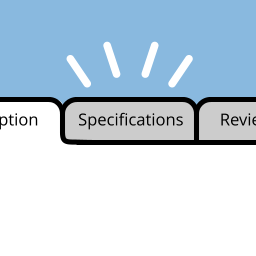
Custom Product Tabs Pro adds tabs beside the standard Description tab on individual WooCommerce product pages. Use separate sections for specifications, care instructions, delivery details, technical information, sizing guidance, or other product content.
Keep product details simple to scan
Custom Product Tabs Pro adds tabs beside the standard Description tab on individual WooCommerce product pages. Use separate sections for specifications, care instructions, delivery details, technical information, sizing guidance, or other product content.
Build tabs for one product
On the WooCommerce Edit Product screen, open Custom Tabs at the bottom left of the Product Data box. Add or delete tabs, then use the move controls to set their order. Each tab uses the standard WordPress text editor, which supports text, pictures, HTML, and shortcodes.
Share content across products
Create a saved tab from the Custom Product Tabs dashboard menu, then add it to the products that need it. Updates to a saved tab apply to products using it. This can help maintain shared information such as warranty details, general instructions, or repeated product details.
To use various wording on one product, choose Override Saved Tab, edit the tab for that product, and save. Later changes to the dashboard version stop applying to that product. The shared version remains available to other products using it.
Carry tabs with product data
Custom tab data is included in standard WooCommerce product data exports, helping retain the tab information when moving products between sites. The plugin is compatible with WPML. Documentation is available in the Knowledge Base, and support questions can be submitted through the Free WordPress Support Forums.
Get started
- Install and activate Custom Product Tabs Pro alongside WooCommerce.
- Edit a WooCommerce product and open Custom Tabs in the Product Data box.
- Add a product-specific tab, enter content in the WordPress editor, and arrange the tab order.
- For shared content, create a saved tab from the dashboard and add it to selected products.
After saving, the custom tabs appear beside the default Description tab on the relevant product pages.