WordPress plugin
Blog Floating Button Pro
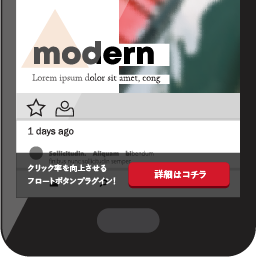
Blog Floating Button Pro adds floating buttons to a WordPress site and links them to destination URLs such as landing, product, or contact pages. In the admin area, set the text visitors see, choose from four button styles and five colors, and configure the destination and link behavior.
Guide users with floating buttons
Blog Floating Button Pro adds floating buttons to a WordPress site and links them to destination URLs such as landing, product, or contact pages. In the admin area, set the text visitors see, choose from four button styles and five colors, and configure the destination and link behavior.
Set who sees buttons and where
General options apply across the website. During setup, choose “Show only to administrators” so buttons appear only to visitors logged in as administrators. When the configuration is ready, choose “Show to everyone.” Separate designs are available for desktop and mobile visitors, and a homepage setting controls how buttons appear there.
- Enter post or page IDs where buttons should be hidden.
- Enable auto-conceal to hide buttons as a visitor scrolls, or choose “Always display” to keep them visible.
- Set the background color of the bar behind the button.
Configure each button
Set each button’s shape, color, visible text, and destination URL. Choose how the link opens; “New tab” opens the destination in a separate browser tab.
Track clicks
Click tracking can be enabled or disabled in the general settings. You can exclude clicks from logged-in administrators. Excluding administrator activity is recommended for more representative visitor data, except while testing.
The plugin bundles the Montserrat font. Its SIL Open Font License 1.1 text is included in css/fonts/OFL.txt.
Install and configure
For automatic installation, go to Plugins > Add New in the WordPress admin area, search for “Blog Floating Button,” install it, and activate it. For manual installation, extract the extension archive, upload the plugin folder to /wp-content/plugins/, then activate it under Plugins > Installed Plugins. Open the plugin settings, configure general show options before individual buttons, and use administrator-only display to check the setup before showing buttons to everyone.